How to create and use an offline collector as a tool
This article demonstrates how to create a generic offline collector and then use it as a Velociraptor tool with conventional “online” clients.
Velociraptor offline collectors are a popular deployment mode in which one or more artifacts are collected from endpoints, the results are packaged inside a zip container, and then optionally uploaded to a remote storage destination. Typically the remote destination is a cloud storage provider such as AWS S3, Azure, or Google Cloud Storage, but it can also be a storage service set up on the local network.
Offline collectors provide the same capabilities as normal network-connected clients, but perform a one-off collection of predefined artifacts rather than being tasked to collect artifacts as needed by the server.
However, you might have Velociraptor clients deployed, and you are using these network-connected “online” clients to run smaller more focused queries, but you also occasionally want to do an offline-collector-style bulk file acquisitions.
With network-connected clients the results are uploaded to the Velociraptor server. File uploads are also done separately rather than being bundled into a single zip archive. This might not be desirable in certain circumstances, for example:
- if the server’s storage is not specced to handle the total size of these bulk collections, which are typically large if they consist mostly of copied files. In that case, you might want the collections uploaded to an alternative destination where storage space is less constrained.
- if you want to post-process these collection zips using other tools, then you might already have a process that includes retrieving them from the remote storage location. In that case, having the collected data in per-endpoint collection zips might also help with the retrieval and post-processing.
Offline collectors are created by the Server.Utils.CreateCollector
server artifact, which creates a special embeddable configuration with
the selected client artifacts, tools, and remote upload configuration
included. Since it’s all just VQL you could, in theory, create a
client artifact that replicates the actions of any offline collector.
However, in practice the
Server.Utils.CreateCollector
artifact is significantly complex. Creating a custom version of it
that can be run by clients would be a daunting task. It’s much easier
to create the offline collector in the normal way, and then run it via
a client as a tool. This is the approach taken in this article.
Do you really need to use an offline collector?
Offline collectors are sometimes used in situations when they aren’t really needed, or aren’t actually the best option.
Before deciding to use an offline collector, you should consider the following points.
-
You can collect exactly the same artifacts with online clients that you can collect with offline collectors.
-
Offline collectors are not the only available option when you can’t install clients. If you can’t (or don’t want to) install clients, you still have the option of using clients without installing them, as explained in the KB article How to create an “online collector” binary.
Overview
The overall goal here is to have the client download an offline collector as a tool from the server and run it. The offline collector will in turn create a collection container zip and upload it to a remote S3 server.
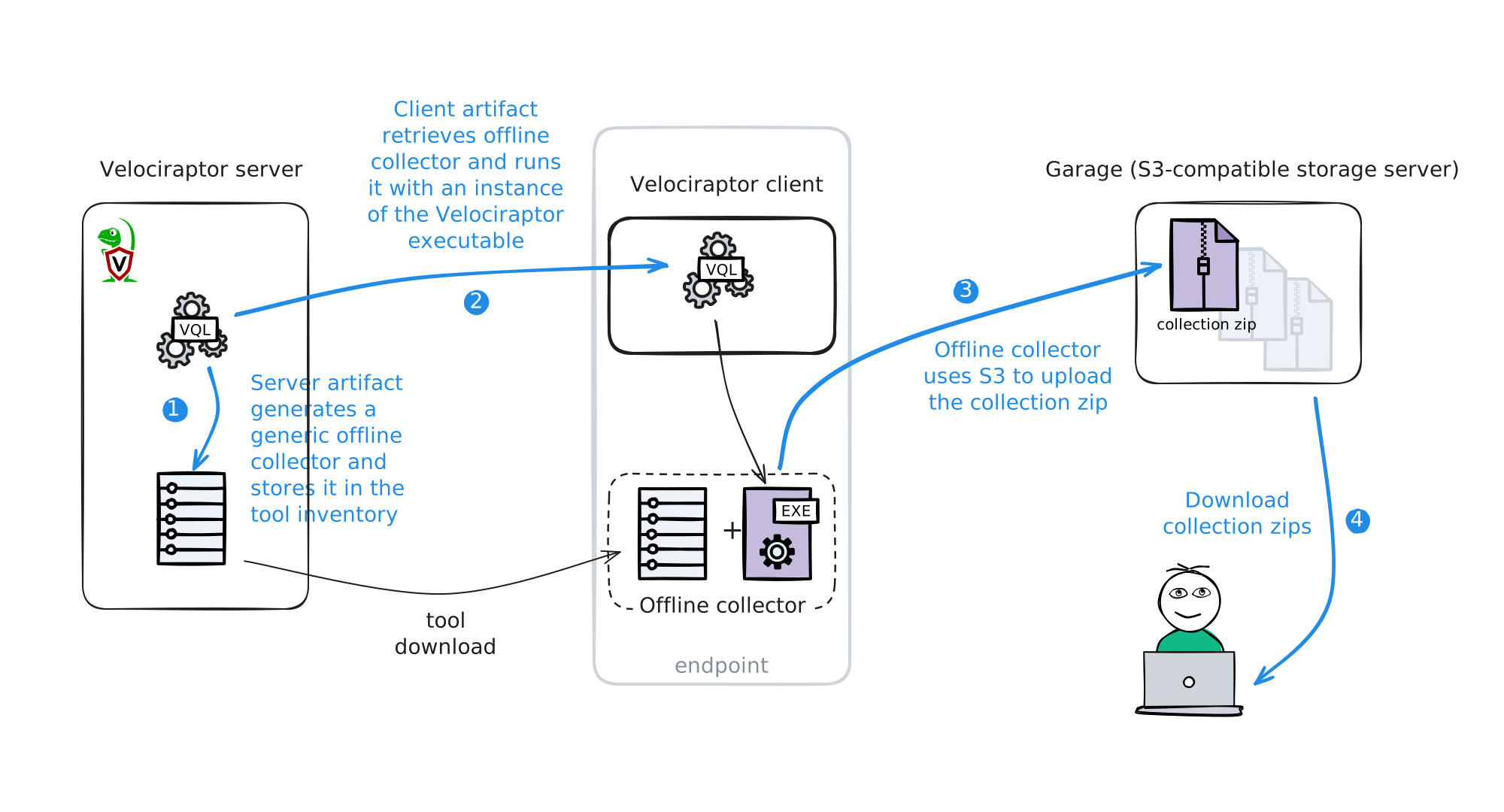
In this case I’ll use Garage which is an open source S3-compatible server written in Rust, but you could use AWS S3, or MinIO, or any other S3-compatible server, or even one the other remote destination options that are supported by Velociraptor offline collectors.
The high-level steps to achieve this goal are:
- Set up an S3-compatible storage server (Garage).
- Create a generic offline collector and store it in the Velociraptor tools repository.
- Create a client artifact to run the offline collector on a live client, using the collector as a tool.
- Run the collection on a single endpoint or multiple endpoints.
- Download the collection zip files from the S3 bucket and work with the results.
The Velociraptor server and clients are assumed to be set up and working correctly. As mentioned previously, the clients don’t necessarily need to be installed - they could be running without installation.
1. Set up the Garage S3 server
To keep things as simple as possible, I’ll use a single-node Garage server as the remote destination for the offline collector uploads. This is similar to using an SFTP or SMB server running on the local network.
-
Generate a basic configuration file as explained in the Garage Quickstart guide.
-
Configure the Garage server’s storage and access keys, also as per their quickstart guide.
Here are the commands I used (for brevity, the corresponding output is not shown):
# start the server garage -c ./garage.toml server # check the server status and get the node ID garage -c ./garage.toml status # create a cluster layout garage -c ./garage.toml layout assign -z dc1 -c 1G d7d19e6f32edec53 # apply the layout garage -c ./garage.toml layout apply --version 1 # create a bucket garage -c ./garage.toml bucket create offline-collections # check that the bucket has been created garage -c ./garage.toml bucket list # view the bucket configuration garage -c ./garage.toml bucket info offline-collections # create an identity for the collector to use garage -c ./garage.toml key create offline-collections-key # assign write-only access to the bucket for this user garage -c ./garage.toml bucket allow --write offline-collections --key offline-collections-key # create a bucket admin user garage -c ./garage.toml key create offline-collections-owner # assign full access to the bucket for this user garage -c ./garage.toml bucket allow --write --read --owner offline-collections --key offline-collections-owner -
I’ve created one bucket to receive the collection zips, named
offline-collections, and I’ve created 2 keys with access to it.offline-collections-key: with only write access, that will be used by the clients to upload their collection zipsoffline-collections-owner: with full access for browsing and downloading the collection zips.
The reason for creating 2 keys is that the write-only key will be included in the offline collector for the purpose of uploading the collection zips. Because it’s possible to extract the key from the offline collector I want it to have no greater permissions than are necessary. It only needs to be able to upload files to the bucket, and cannot list/download/modify/delete other files in the bucket.
The final bucket and access configuration can be inspected with the command:
garage -c ./garage.toml bucket info offline-collections.==== BUCKET INFORMATION ==== Bucket: d5f9982666e004de45114bcfc1e9428755c15d12f55a2dac7bc77dc495343e97 Created: 2026-03-16 16:28:13.689 +02:00 Size: 0 B (0 B) Objects: 0 Website access: false Global alias: offline-collections ==== KEYS FOR THIS BUCKET ==== Permissions Access key Local aliases W GKaa23dd92075b4dc6fc9fe54f offline-collections-key RWO GK08c8137adf22d3b08c6ea088 offline-collections-owner -
I’ll access the bucket using the
offline-collections-ownercredentials on the command line using themc(MinIO client) utility available from https://dl.min.io/client/mc/release/.# download the tool and make it executable wget https://dl.min.io/client/mc/release/linux-amd64/mc chmod +x ./mc # Save credentials and connection info for the mc tool mc alias set \ garage \ http://192.168.56.1:3900 \ GK08c8137adf22d3b08c6ea088 \ 389adafacb2e3b1c96f9216b9a77c89b74b4d64949d1a0e90f3ca88378f2ca4e \ --api S3v4With the credentials configured, I’ll test access by uploading a file to the bucket, then listing the bucket’s contents, and finally clearing everything from the bucket (command output is omitted).
# copy a file to the bucket
mc cp /proc/cpuinfo garage/offline-collections/cpuinfo.txt

# list bucket contents
mc ls garage/offline-collections

# remove everything from the bucket
mc rm --force --recursive garage/offline-collections
Looks good. The S3 server is ready, so now we can create the offline collector.
2. Create a generic collector and store it in the Velociraptor tools repository.
In this step I am going to create a generic collector and add it to the server’s tools inventory.
There are several ways that this could be done, but I want to:
- automate the creation of the offline collector via a server artifact, and also
- have it also add the tool to the tools inventory.
To achieve this I’ll create a server artifact that runs
Server.Utils.CreateCollector and stores the resulting offline
collector file as a tool that other client artifacts can use.
By having an artifact that performs this step, I’ll be able to easily create additional collectors with different sets of artifact selections as tools. These other collectors could have artifact selections for alternative Windows use cases, or they might be selections of artifacts chosen to target non-Windows platforms. All I need to do is select appropriate artifacts when creating additional collectors and give each collector a unique tool name.
For my first collector I intend to target Windows and have it run the following artifacts:
Windows.Triage.Targets(with HighLevelTargets =_Live)Generic.Forensic.SQLiteHunterGeneric.Client.Info
2.1 Create a collector test build
As a test, and to ensure that I get the collector configuration right, I’ll first create it manually. Then I’ll test it on a Windows endpoint to ensure that the S3 upload aspect works correctly. To do this I run the “Build offline collector” wizard which is launched from the Server Artifacts screen.
-
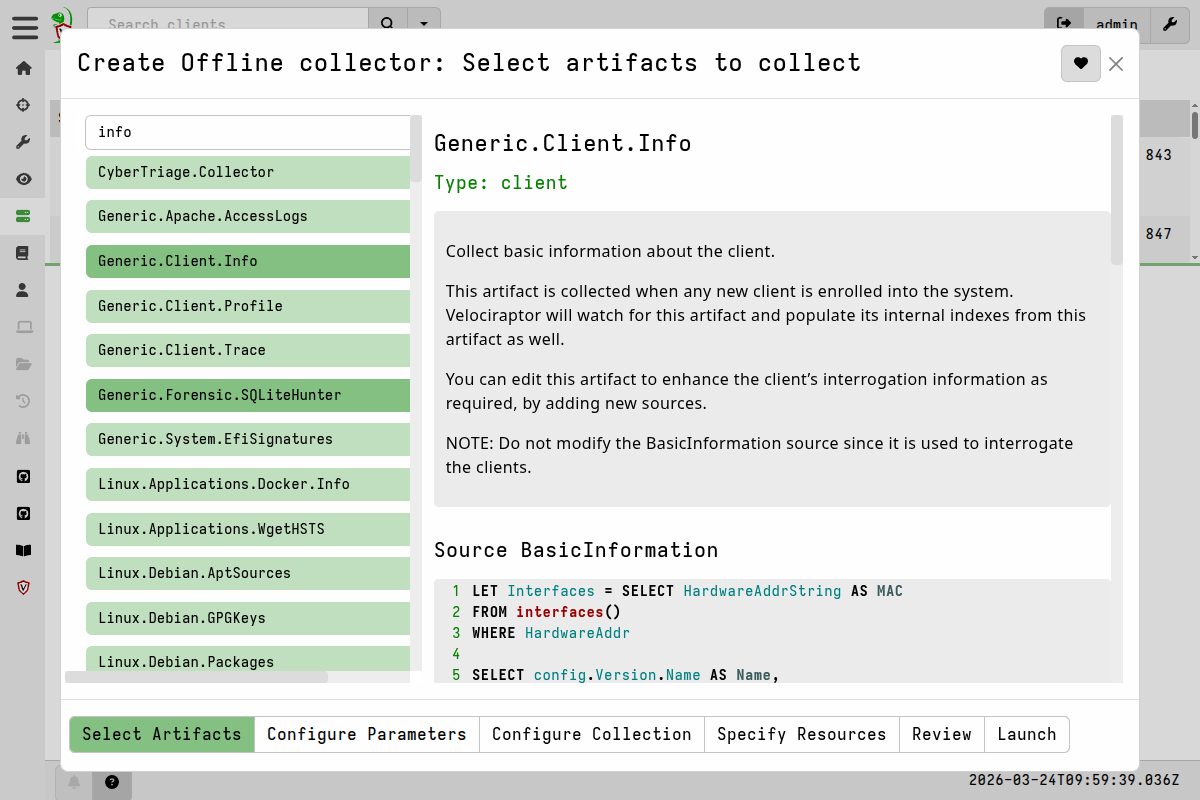
Choose the artifacts I want to collect, as listed above.
Artifact selections -
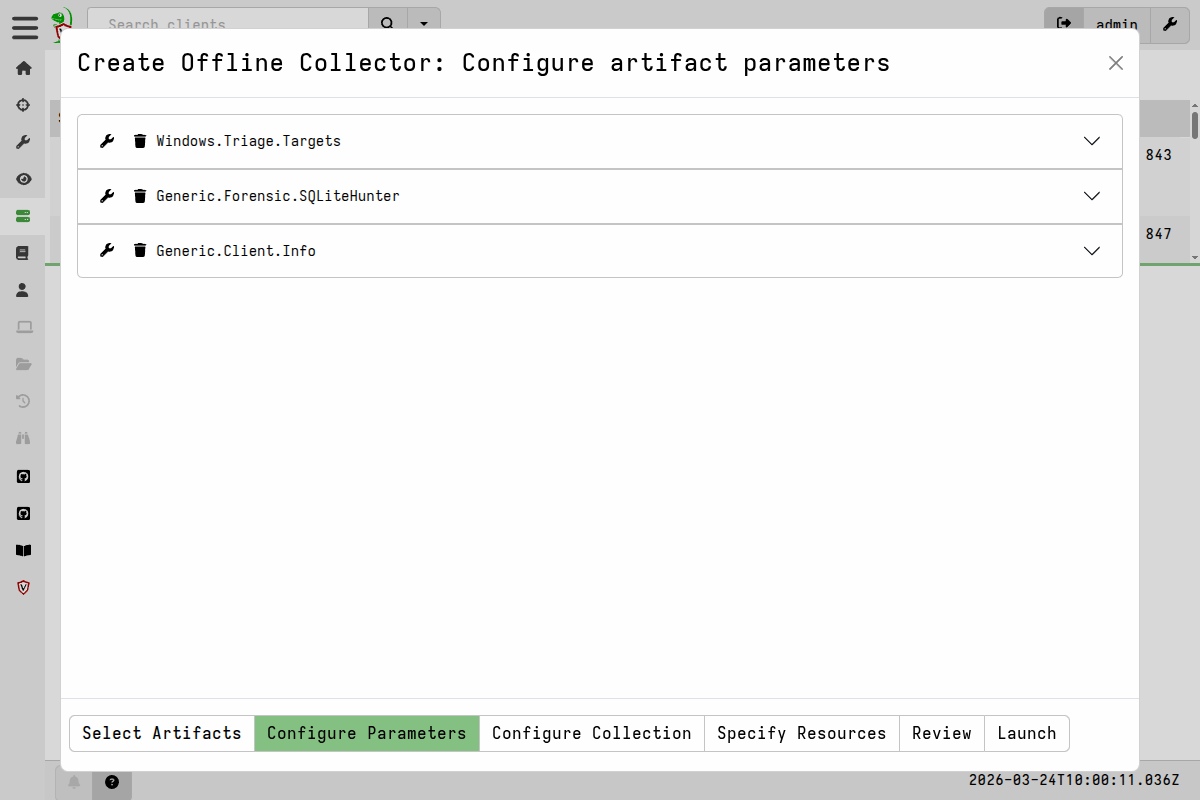
Configure the artifact parameters.
In this case all I did was configure
Windows.Triage.Targetswith the_LiveHigh Level Target.Artifact parameters -
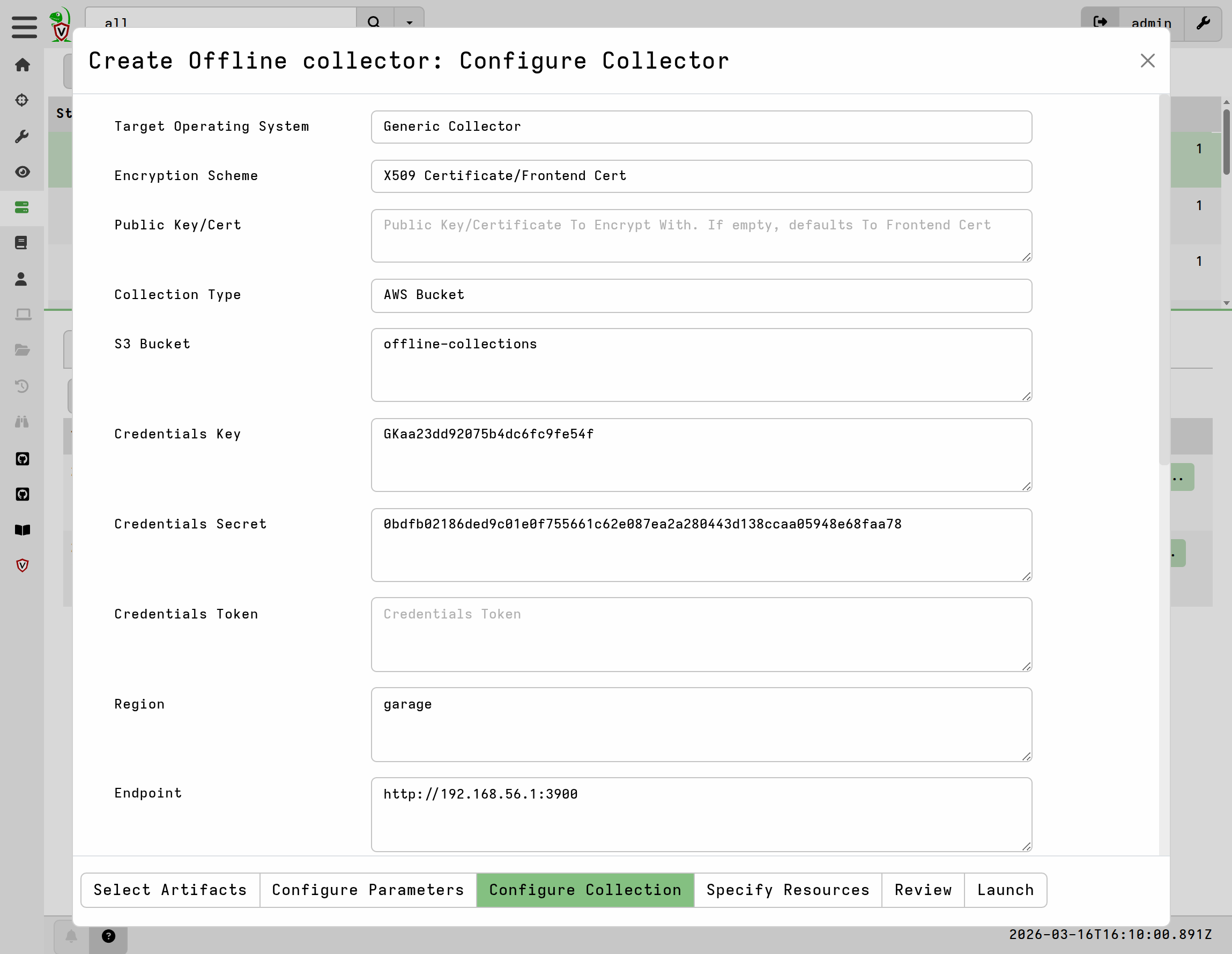
Configure the collector itself.
The reason I want to create and use a generic collector is because the client already has the correct Velociraptor binary - the one from which the client itself is running. There’s no reason to repack and distribute another full binary. The generic collector will be significantly smaller and provide exactly the same result.
Collector configuration Here I used the following settings, which correspond to my specific environment, including the configuration of my Garage S3 server. Settings not listed here were left as default.
- Target Operating System:
Generic Collector - Encryption Scheme:
X509 Certificate/Frontend Certificate - Collection Type:
AWS Bucket - S3 Bucket:
offline-collections - Credentials Key: [ my Key ID for offline-collections-key ]
- Credentials Secret: [ my Secret Key for offline-collections-key ]
- Region
garage - Endpoint:
http://192.168.56.1:3900(my garage server IP andS3_apiport) - Skip Cert Verification:
Y - Pause For Prompt:
Y - Collector Name:
collector-windows-triage - Delete Collection at Exit:
Y
- Target Operating System:
-
Launch the artifact and let it create the collector.
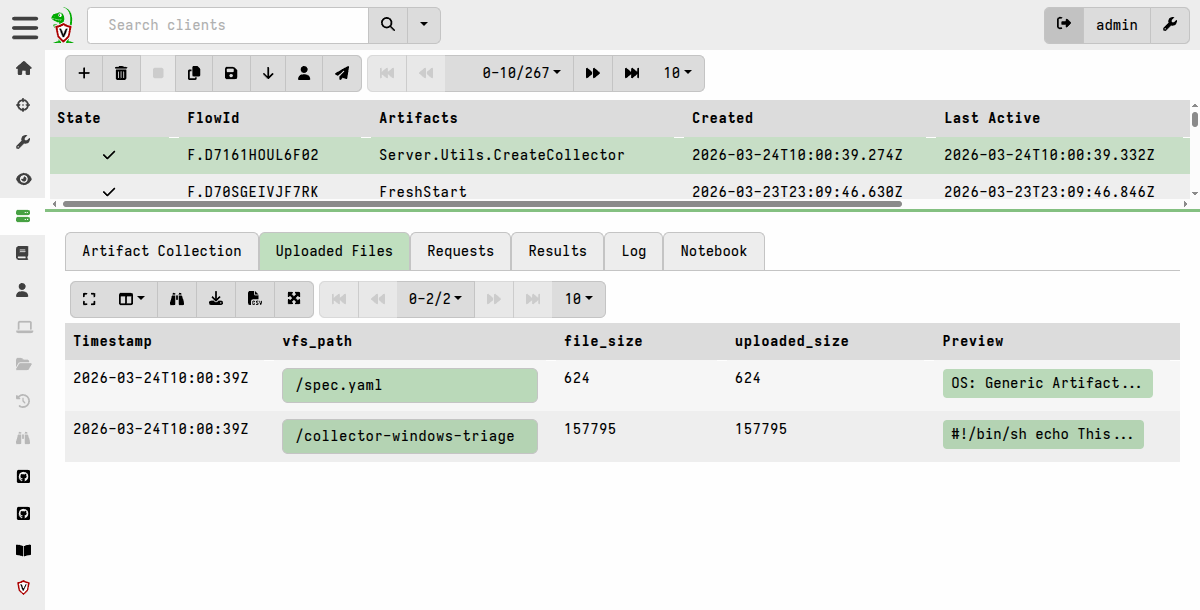
Now I can go download the collector from the artifact’s Uploaded Files tab.
I copy it over to a Windows machine that already has a Velociraptor client installed, and that therefore has the binary with which I can run the generic collector (as administrator).
C:\Program Files\Velociraptor>velociraptor -- --embedded_config collector-windows-triage
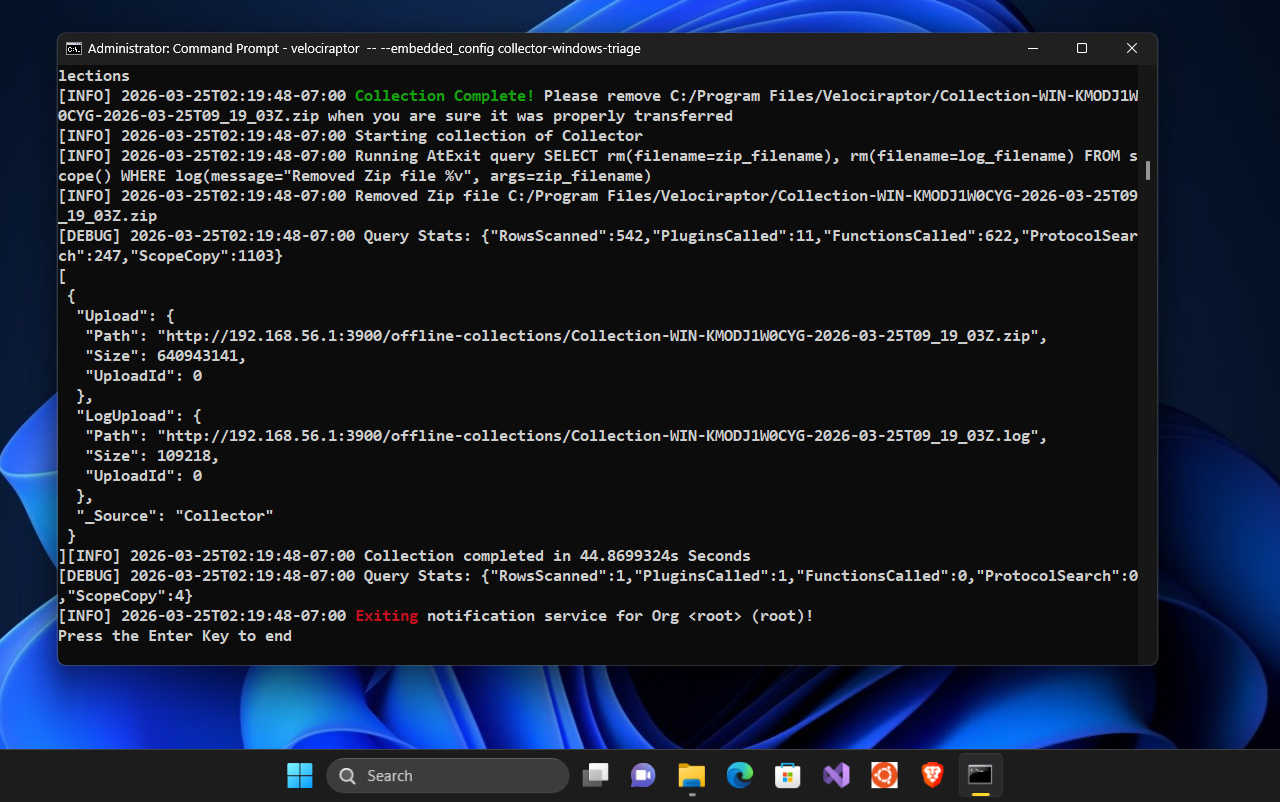
At the end of the collection it pauses, and I can see the that it reports successfully uploading the results to the Garage S3 server.
The “Delete Collection at Exit” setting removed the collection zip from the local disk after uploading it to the S3 bucket.
From my workstation I can connect to the Garage server and confirm that the collection zip and the collection log were uploaded:
$ mc ls garage/offline-collections
[2026-03-25 11:19:48 SAST] 107KiB STANDARD Collection-WIN-KMODJ1W0CYG-2026-03-25T09_19_03Z.log
[2026-03-25 11:19:44 SAST] 611MiB STANDARD Collection-WIN-KMODJ1W0CYG-2026-03-25T09_19_03Z.zip
So the manual collection works as expected, which means the collector settings are correct. However this was just a test step. The next step it to automate the creation of the collector and add it to Velociraptor’s tools inventory.
2.2 Create a collector-generating server artifact
Now that I’m satisfied that my collector configuration works as expected, I’ll create a server artifact that reproduces the creation of that collector.
I want to make a few of the options configurable so I’ll add those as artifact parameters.
name: Custom.CreateCollectorTool
description: |
  Creates a generic offline collector and adds it to the tool inventory.

type: SERVER

parameters:
  - name: artifacts
    type: json_array
    default: '["Windows.Triage.Targets", "Generic.Client.Info", "Generic.Forensic.SQLiteHunter"]'

  - name: artifact_parameters
    type: json
    default: |
      {
        "Generic.Forensic.SQLiteHunter": {
          "DateAfter": "1970-01-01T00:00:00Z",
          "DateBefore": "2100-01-01T00:00:00Z"
        },
        "Windows.Triage.Targets": {
          "HighLevelTargets": "[\"_Live\"]"
        }
      }

  - name: collector_target_args
    type: json
    default: |
      {
       "bucket": "offline-collections",
       "credentialsKey": "GKaa23dd92075b4dc6fc9fe54f",
       "credentialsSecret": "0bdfb02186ded9c01e0f755661c62e087ea2a280443d138ccaa05948e68faa78",
       "region": "garage",
       "endpoint": "http://192.168.56.1:3900",
       "noverifycert": "Y"
      }

  - name: collector_tool_name
    default: 'collector-windows-triage'

  - name: collector_tool_version
    default: '1'

  - name: collector_target
    default: 'S3'

sources:
  - query: |
      LET collector_spec <= dict(
          OS="Generic",
          artifacts=artifacts,
          parameters=artifact_parameters,
          target=collector_target,
          target_args=collector_target_args,
          encryption_scheme="X509",
          opt_verbose="Y",
          opt_banner="Y",
          opt_prompt="Y",
          opt_admin="Y",
          opt_level=5,
          opt_concurrency=2,
          opt_format="jsonl",
          opt_filename_template="Collection-%Hostname%-%TIMESTAMP%",
          opt_collector_filename=collector_tool_name,
          opt_cpu_limit=0,
          opt_progress_timeout=1800,
          opt_timeout=1800,
          opt_delete_at_exit="Y")

      SELECT inventory_add(tool=collector_tool_name,
                                accessor="fs",
                                file=Repacked.Components,
                                version=collector_tool_version,
                                serve_locally=true) AS CollectorTool
      FROM Artifact.Server.Utils.CreateCollector(`**`=collector_spec)
Some things to notice about this artifact:
-
The
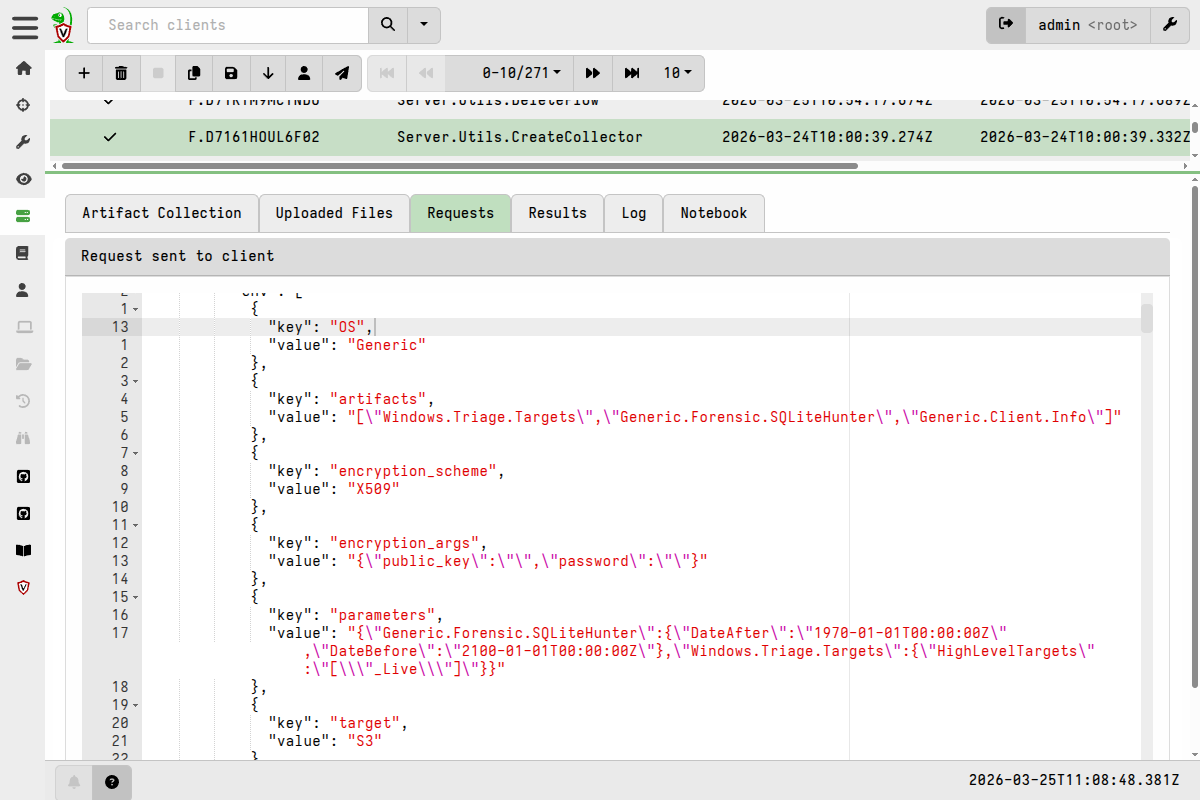
Server.Utils.CreateCollectorartifact accepts many parameters. I’ve constructed a dict with key names matching the ones that can be seen in the Requests tab after runningServer.Utils.CreateCollectorin the previous test build.The Server.Utils.CreateCollector Requests tab -
The
Server.Utils.CreateCollectorhas some parameters that I want to be able to easily change, so I’ve added those as parameters to my artifact. Dealing with some of their values is a bit tricky because the JSON that you see in the Requests tab is heavily backslash-escaped. In my artifact:- the
artifactsparameter needs to be a valid JSON array - the
artifact_parametersandcollector_target_argsparameters need to be a valid JSON objects
To validate your JSON for these parameters, you can use an online tool such as https://jsonlint.com/, which also allows you to prettify it once it’s validated.
- the
-
Tool versioning is quite important and useful, so I’ve added the tool
versionas an artifact parameter. This allows me to store multiple versions of the same tool in the tools inventory, and potentially choose a particular version when I run my client artifact. -
In the
collector_target_argsparameter there are a few child fields that are left empty byServer.Utils.CreateCollector, so I’ve omitted those from the JSON to simplify it. I could have done the same with the date filter parameters inGeneric.Forensic.SQLiteHunter, and it would just use the defaults for those parameters, but I deliberately kept those fields to highlight the nested JSON structure. -
When passing the
collector_specdict toServer.Utils.CreateCollectorI’ve used argument unpacking (**=syntax) to make the SELECT clause more succinct.
2.3 Run the server artifact
I can now run this artifact on my server to generate the offline collector and store it in the tools repository.
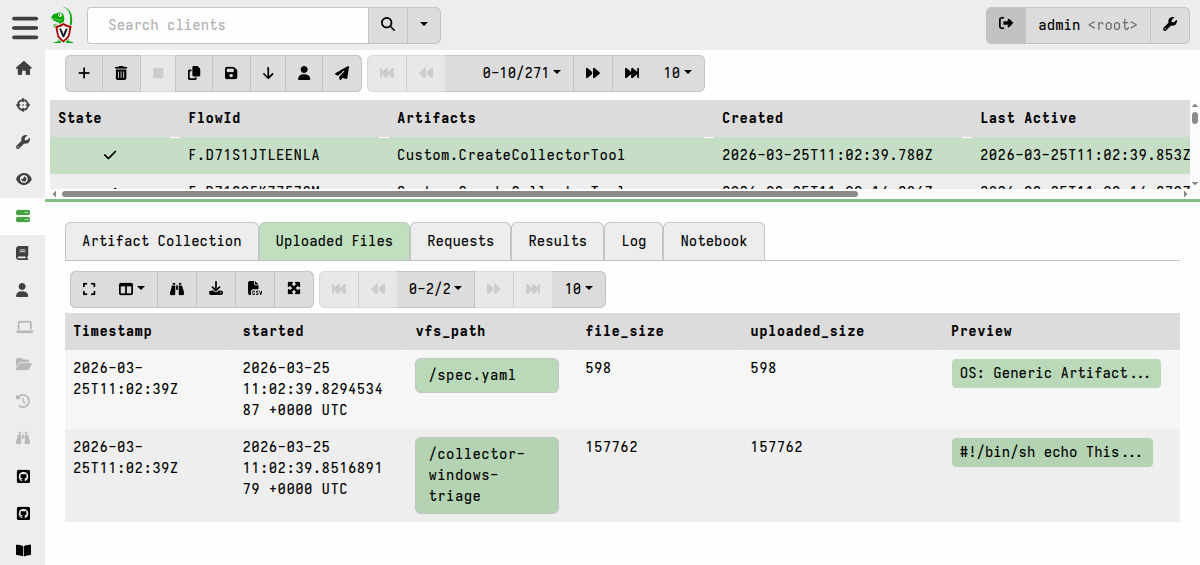
The Uploaded Files tab of the collection makes the offline collector and associated spec file available for download, but I don’t need to do that because the tool is already stored in the tools inventory.
On the Results tab I can see that the tool has been added to the inventory.
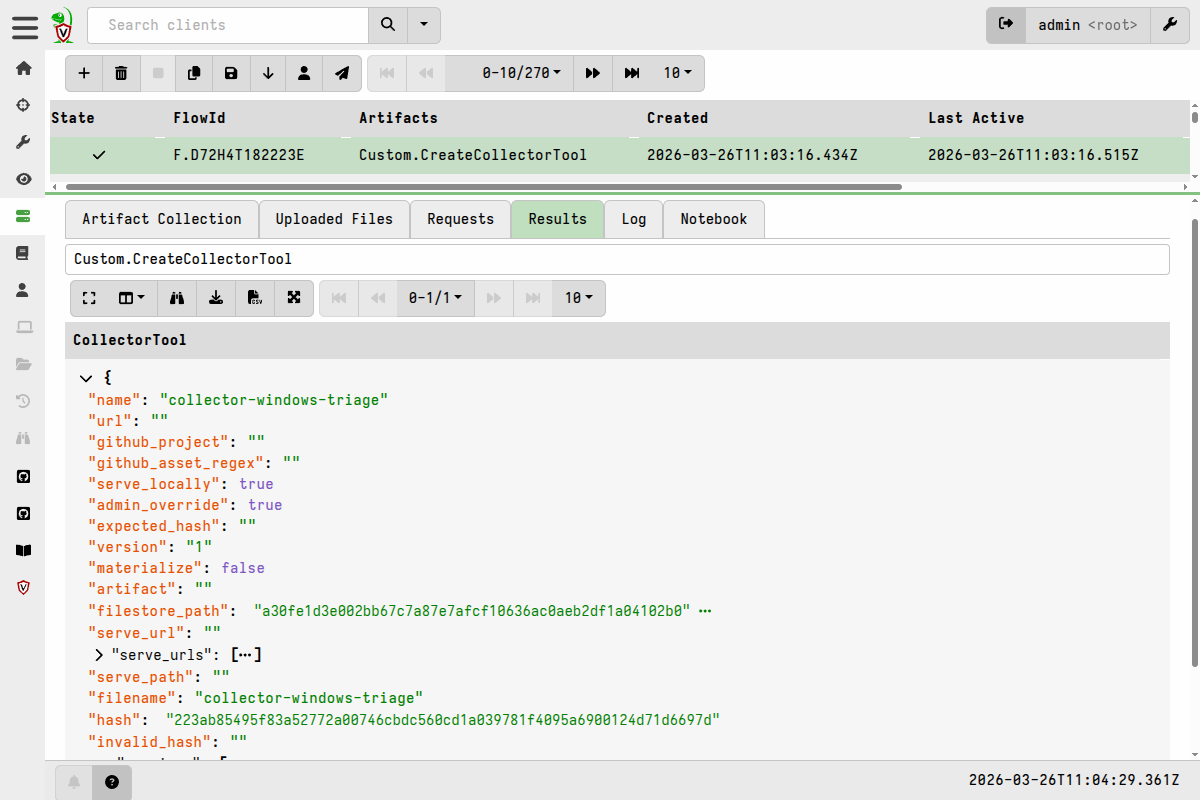
I can also verify that the tool is in the inventory by running the following query in a notebook:
SELECT name, hash, version, serve_locally FROM inventory()
WHERE name =~ "collector-windows-triage"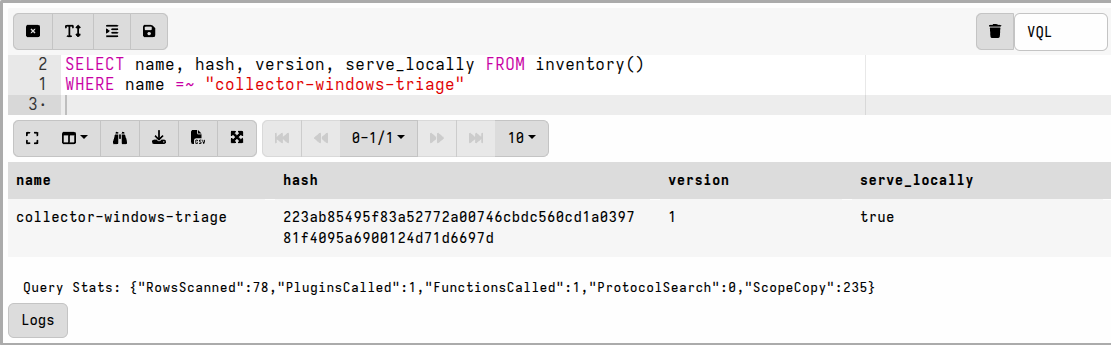
3. Create a client artifact to run the offline collector
With the tool added to the inventory, I can now create my client artifact that will use it.
It’s a very simple artifact that leverages the
Generic.Utils.FetchBinary utility artifact to fetch the generic
collector file from the tools repository.
name: Custom.RunOfflineCollectorTool
description: |
  Runs a generic offline collector retrieved from the server's tools repository.

required_permissions:
  - EXECVE

implied_permissions:
  - FILESYSTEM_WRITE

tools:
# All we need here is the tool name and version because it already exists in
# the tools repository
  - name: collector-windows-triage
    version: "1"

parameters:
# You can have multiple collectors to choose from but they all need to be
# included under the `tools` top-level key.
  - name: collector_name
    type: choices
    default: collector-windows-triage
    choices:
      - collector-windows-triage

sources:
  - query: |
      LET collector <= SELECT *
        FROM Artifact.Generic.Utils.FetchBinary(
                                          ToolName=collector_name,
                                          IsExecutable=FALSE,
                                          SleepDuration="0",
                                          TemporaryOnly=TRUE)

      LET host_info <= SELECT * FROM info()

      LET cmd_args <= (host_info[0].Exe, "--", "--embedded_config",
            collector[0].OSPath)

      SELECT *
      FROM execve(argv=cmd_args, sep="\n")
Some things to notice about this artifact:
-
It uses the
info()plugin to get the full path to the Velociraptor client’s own binary. It then uses that to run the generic collector. -
For the
Generic.Utils.FetchBinaryartifact I’ve specified the parameterTemporaryOnly=TRUEbecause it’s easy for an adversary to print out the collector config and see what I’m collecting if the file is left lying around on the filesystem. So by avoiding caching the file in the local tools cache, there’s less chance of some else finding it abusing it. It’s also very unlikely that I’d want to run the same offline collector twice, so caching it isn’t really useful. -
The artifact makes provision for adding more offline collectors, but I only have one at this stage.
-
in the
toolssection I have specified a version number. If I create subsequent versions of the same tool, then I can switch to a specific version if needed by changing this value. If I want it to always use the highest version of the tool, I could not specify a version and it will automatically choose the highest number (taking into account Semantic Versioning if I had chosen to use that scheme).
4. Run the client artifact
I now collect the Custom.RunOfflineCollectorTool on a client. I’m
doing this for a single client but it could just as easily be run via
a hunt to target many clients.
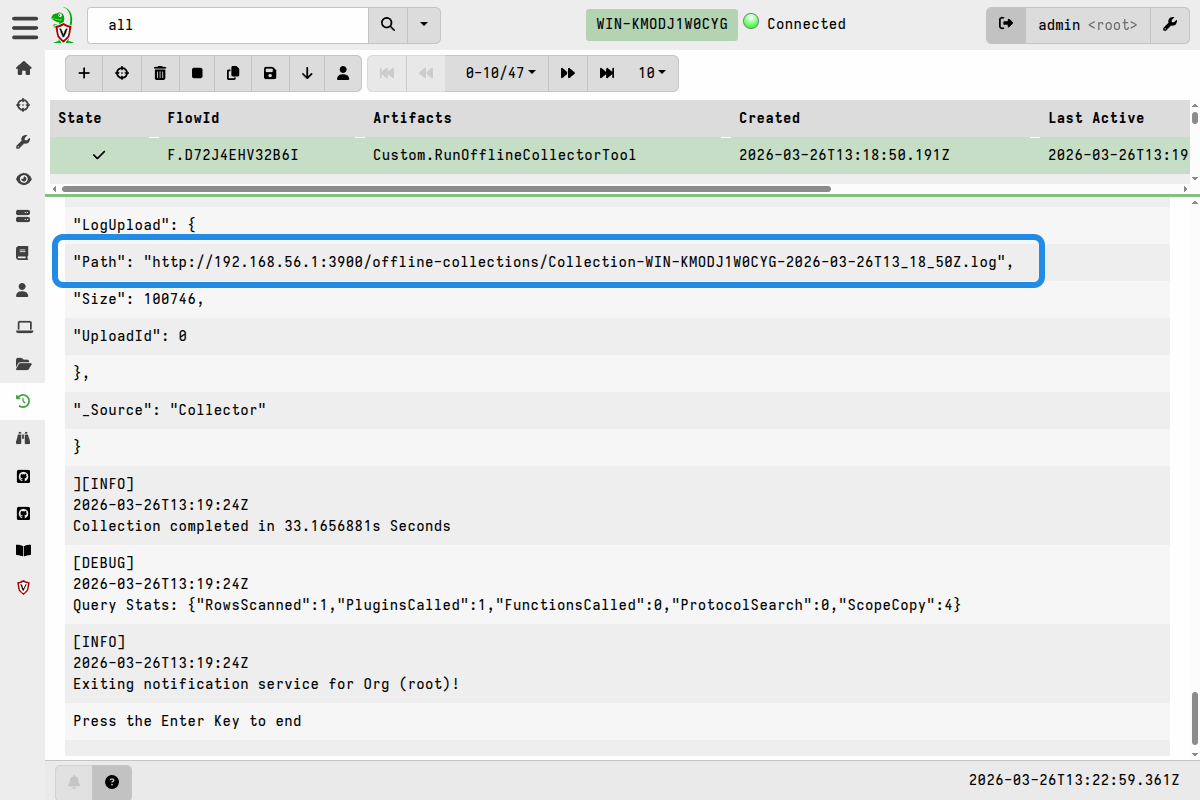
The collection proceeds on the client and I can view the results, which will come though in near-realtime as the offline collector is running. The collection results are just a line-parsed view the output from Stdout and Stderr.
Near the end of the results I can see that it uploaded the collection container zip to the S3 bucket.
On the collections Log tab, I can view the steps taken on the client to run the collector, including things like the command that was used and post-execution cleanup steps.
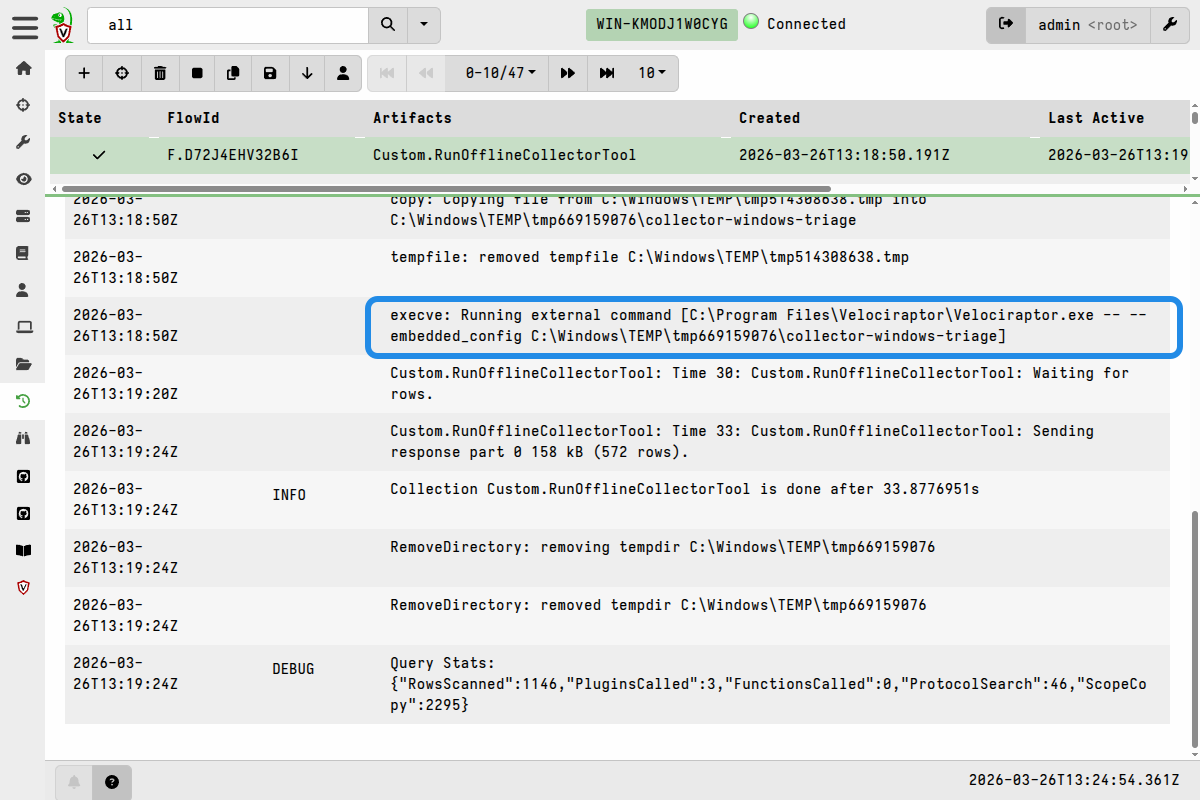
The offline collector doesn’t know it’s being run by a Velociraptor client and, as I mentioned in the overview, the collection data is therefore independent of the Velociraptor server. The client was just being used to run the collector. The collection results and collection log only provide information about running the collector.
5. Download collection zips from the S3 server.
With the collection zips stored in the S3 bucket, any external process can take over from there. You may have an automated process that monitors the bucket for new arrivals, downloads them, and feeds them into a processing pipeline.
In my case, I’m just going to download them manually using the MinIO
mc utility that I set up previously.
First I list what’s in the bucket:
mc ls garage/offline-collections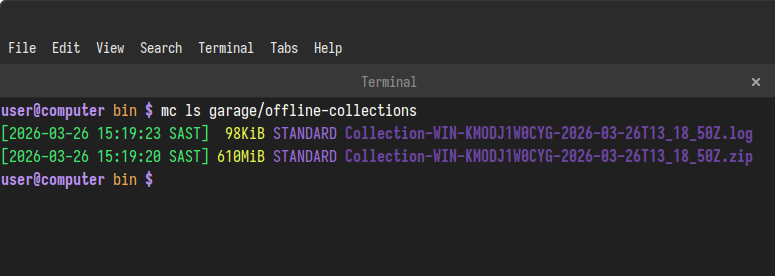
I then download the files to my desktop using mc:
mc cp --recursive garage/offline-collections /tmp/collections/At this point I have many options regarding how I might want to work with the collection container zips.
For example I could:
-
extract the collection zips and work with their contents using other tools, perhaps also using Velociraptor’s command line analysis capabilities alongside the other tools.
or
-
run an Instant Velociraptor instance on my local workstation, or a set up separate Velociraptor server dedicated to analysis, and then either:
- import the collection container zips before working with their contents, or
- work with the collection container contents without importing them.
As always, Velociraptor give you many options and you’ll need to decide which options work best for your situation. Hopefully the steps demonstrated here are generic enough that they can be easily adapted for similar scenarios.