How to monitor event artifact errors
Client and server event artifacts run continuously in the background, and when they fail the errors are written to the monitoring log. Event queries produce a lot of logs at various severity levels (DEBUG, INFO, WARN, ERROR). Some of these entries, especially errors, are worth paying attention to, since they indicate that something has failed. Server event queries in particular are typically used for important monitoring and automation, so you want to be notified when anything goes wrong. A VQL syntax error, a missing executable, a failed S3 upload or unsuccessful JSON parsing — all of these can silently break monitoring.
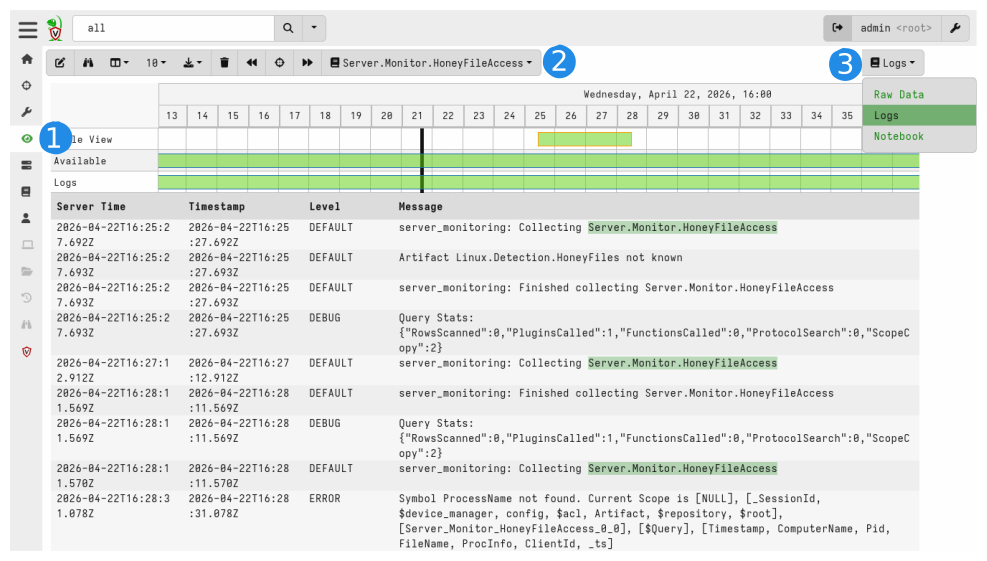
Monitoring logs are available in the Server Events interface, but you are not notified about errors or warnings in these logs out of the box.
Server.Monitor.Errors.Alert
and
Server.Monitor.Client.Errors.Alert
periodically inspect those logs and call
alert() for matching entries, which
can then be forwarded by e-mail via
Server.Monitor.Alerts.
Server.Monitor.Errors.Alert (server-side errors)
If you have any custom server event artifacts, you have likely configured some automation, like fetching data from APIs or uploading data to S3/Elastic. You probably want to be notified if any of this automation fails.
Server.Monitor.Client.Errors.Alert (client-side errors)
Unlike server event artifacts, client event artifacts run on many endpoints. You probably do not want the same kind of log monitoring as for server event artifacts, but this artifact allows you to do so when needed. Perhaps you run important monitoring on some tagged endpoints, and it is critical that this monitoring runs without errors. If you rely on the process tracker, ETW/EVTX or eBPF monitoring, you may want to know if it fails.
Configuring filters
Both artifacts share the same filter model. IncludeFilter is a CSV
table with columns Artifact, Level, and Message (all regexes),
plus an optional Severity column and any additional custom columns:
| Artifact | Level | Message | Severity |
|---|---|---|---|
| .+ | ERROR | .+ | medium |
| .+ | DEFAULT | fork/exec .+ no such file or directory | high |
Rows are matched top-to-bottom; the first match wins. ExcludeFilter works
the same way and is applied after IncludeFilter.
Note
Many errors from native VQL functions are logged at level DEFAULT, not
ERROR. Include DEFAULT in your filters to catch these. See the
reference list of known VQL DEFAULT-level errors
for a ready-to-paste list.
Custom columns
Any column added to IncludeFilter beyond the built-in ones is passed
through as extra context on the alert. This is useful for attaching a
human-readable description or a suggested action to a known error
pattern:
| Artifact | Level | Message | Severity | Explanation |
|---|---|---|---|---|
| .+ | DEFAULT | watch_ebpf: Unable to compile regex_prefilter | medium | eBPF event pre-filter regex is invalid: all events pass through unfiltered |
| .+ | DEFAULT | execve: Not allowed to execve by configuration | high | Shell execution blocked by client config |
| .+ | ERROR | .+ | medium |
Deduplication
Both artifacts suppress repeated alerts using DedupInterval (default
3600 s). Deduplication is keyed on the alert name, which includes the
artifact name, so at most one alert is produced per artifact per
interval. Check the monitoring log directly if you suspect there are
more errors than the alerts indicate.
Artifact details
Server.Monitor.Alerts
has an IncludeArtifactDetails option (off by default) that appends a
block of metadata about the offending artifact to the e-mail: name,
type, author, whether it is built-in or inherited, declared
permissions, and any artifact metadata. It also scans the recent audit
log for SetArtifactFile, SetServerMonitoringState, and
SetClientMonitoringState entries to make a best-effort guess at when
the artifact and the event table were last modified, and by whom.
This is useful when you are still writing or debugging an artifact and want to know which version of it produced the error, or whether someone just changed the event table. For routine alerting it is typically too noisy and adds little beyond the artifact name, which is already in the alert.
Routing to e-mail
If your server has internet access, run
Server.Import.Extras
to import all three artifacts at once. Otherwise, copy the definitions
manually from the Artifact Exchange. Then add
Server.Monitor.Client.Errors.Alert,
Server.Monitor.Errors.Alert,
and
Server.Monitor.Alerts
as server event artifacts, pointing all of them at the same SMTP
secret. See
Using alerts in Velociraptor for
Server.Monitor.Alerts configuration details.
See also
- Monitor client event artifact errors:
Server.Monitor.Client.Errors.Alert - Monitor server event artifact errors:
Server.Monitor.Errors.Alert - Forward alerts by e-mail:
Server.Monitor.Alerts - Reference list of known VQL DEFAULT-level errors
- Using alerts in Velociraptor
- Alerts and e-mail notifications in Velociraptor