Collections and File Acquisition over SSH
Velociraptor’s SSH accessor lets you read and retrieve files from a remote SSH-enabled system. This is very useful in situations where deployment of the client on the remote system isn’t justified, or isn’t technically possible (for example, on unsupported architectures such as routers and firewalls which nevertheless do provide filesystem access via SSH), or perhaps where new software installations just aren’t permitted.
Typically the target endpoints are Unix-like systems, as these often have SSH access enabled, but it could also be a Windows or macOS system where installation of a client is just not possible for either technical, political, or other reasons.
Access via SSH lets you read files in place on the remote system, or retrieve them as collection uploads. One possible reason for not wanting to deploy a client on the remote system is that it may just be hosting files that you want to read/retrieve, such as logs on a firewall, and you aren’t interested in investigating the device itself.
This page explains the options for running filesystem-oriented Velociraptor queries and artifacts on systems without running a client on them, over SSH, using Velociraptor’s SSH accessor.
The SSH accessor requires that the SFTP subsystem is enabled and running on the remote system. It’s possible to have SSH access enabled on a host without SFTP in which case the SSH accessor will not work, and in that case Velociraptor will return an access error.
Limitations
Accessing a remote system using the SSH accessor is essentially equivalent to using SSHFS, which also uses SFTP and has similar constraints and limitations.
- No tool use: The SSH accessor is used to read or retrieve remote
files. Unlike a full client, it cannot execute arbitrary tools or
shell commands on the endpoint. For example, the UAC collector is a
shell script which is pushed to the endpoint when collecting the
Linux.Triage.UACartifact on a normal Linux client, however this or other tools cannot be used via the SSH accessor. - Only file-related plugins: Plugins that return data from sources
other than from the filesystem, for example
pslist(), cannot produce data and should therefore be disabled via the remapping config. If you accidentally use a plugin that retrieves data from non-filesystem sources, then it will produce data from the local system rather than the remote system. - No access to virtual filesystems: On Linux this means that
reading
/procor/syswon’t work since SFTP doesn’t expose virtual filesystems.
All of Velociraptor’s file-related functions and plugins can be used with the SSH accessor. Also all other accessors can be used via accessor remapping, so existing artifacts that use specific accessors will still work, provided that an appropriate remapping config is used.
Different approaches to using the SSH accessor
There are several ways to use the SSH accessor, each with different trade-offs. The right approach depends on whether you are doing ad-hoc investigation, automated collection, or something in between.
You have two main options when using SSH to access a remote system’s filesystem, and each of these has variations in the ways in which it could be done:
- Using VQL on the server, either in a server artifact or a notebook. For simple filesystem access operations no remapping is required, but if you want to collect artifacts that depend on path remapping then you’ll need to add a remapping to the VQL scope.
- Using a dedicated virtual client with a remapping config. This is a client which impersonates the SSH-accessible system and relays VQL queries to the remote filesystem system via SSH. This client could be run on the server or another machine - from the server’s perspective its just another client.
The choice of which option is most suitable depends on the specific collection requirements. We’ve provided guidance for each of them in the following sections. In general, if you want the remote endpoint to appear and be managed as a Velociraptor client then you’ll want to use a dedicated virtual client.
Example Use Cases
- You have a hypervisor or container host that isn’t running a supported platform or architecture, and you want to check it’s logs or configuration.
- You want to retrieve firewall or router logs from a hardware appliance, but have no reason to investigate the device itself. You just want the logs that might describe actions taken by hosts that you are investigating.
- You want to do some once-off checks on a few Linux hosts in a mostly-Windows environment which doesn’t justify full client deployment, or permanent Velociraptor presence on those hosts. Maybe those Linux machine are also very old and incapable of running the latest Velociraptor binary.
How the SSH accessor works
The SSH accessor connects to a remote host over SSH and uses the SFTP
subsystem to provide filesystem access. You configure it by setting
the SSH_CONFIG VQL variable, which accepts these fields:
| Field | Description |
|---|---|
hostname |
Remote host and port (for example, 192.168.1.100:22) |
username |
SSH username |
password |
Password authentication |
private_key |
Private key content (unencrypted PEM format) |
secret |
Name of a server secret to use instead of inline credentials |
Although credentials (username, password/private_key) can be
explicitly passed to the accessor, this is strongly discouraged. See
the note below.
The accessor requires the NETWORK permission to operate.
Avoid using credentials directly in notebooks and artifacts
Unless you’re just doing some testing in a non-production environment, you should always use server secrets to store credentials for SSH, rather than specifying them in the artifact or notebook.
For notebooks this is especially important because notebook cell contents are saved to disk when executed, and have a default cell history that stores the last five versions. Even for server artifacts this is important as explicit credentials will be saved in the VQL request where other users can see them (collections are visible to all users in an org).
Server secrets are designed to address this exact problem: You can create a new SSH secret, which is stored encrypted - the credentials in it can’t be viewed, even by yourself once created and saved - and then selectively share it with other users. Users who have access to the secret can use it but cannot view its contents.
Using a SSH secret also has the benefit of making your VQL more succinct, as you’ll see below.
Enforcing secrets-only usage:
Server administrators can set VqlMustUseSecrets in the server
configuration to require that all credentials be supplied via secrets.
When this is enabled, inline credentials (like username and
private_key in SSH_CONFIG) are rejected, and only secret=
lookups are allowed.
Creating SSH secrets
Creating an SSH secret is a simple 2-step process:
- Define the secret.
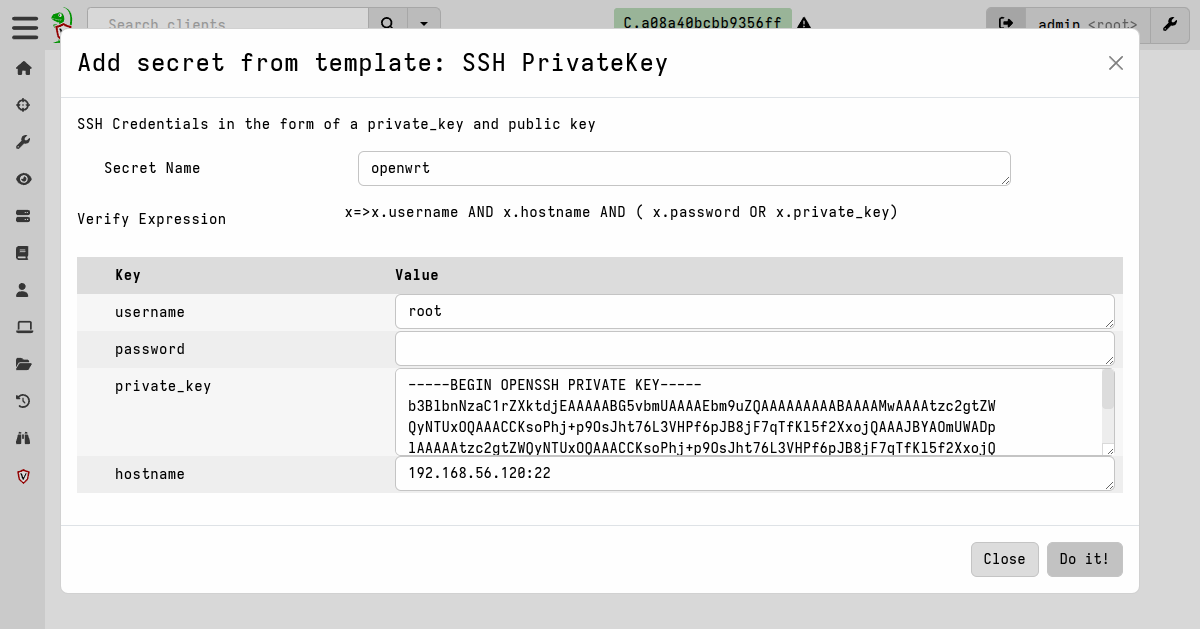
- Grant access to the secret. Access should be granted to the
VelociraptorServeruser when you need the secret to be used by automated (i.e. non-user-initiated) actions, for example when running an artifact in response to a server monitoring event.
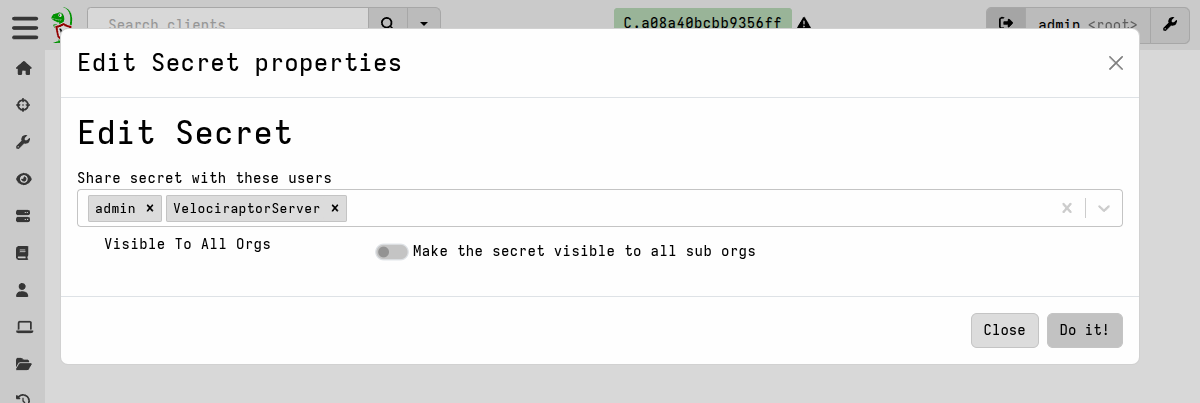
The secret can then be referenced by its name when setting the
SSH_CONFIG VQL variable that the SSH accessor uses.
LET SSH_CONFIG <= dict(secret="alpine")

SELECT *
FROM glob(globs='/**', accessor='ssh')
This does not expose the credentials and makes setting
the SSH_CONFIG variable much simpler.
If you are just doing query development on a test system, you could specify the credentials explicitly, which would look something like this:
LET SSH_CONFIG <= dict(
    hostname='192.168.1.100:22',
    username='admin',
    private_key=read_file(filename='/etc/velociraptor/ssh_keys/remote.key')
)
Hostname format and key requirements
- The
hostnamefield must include the port (for example,10.0.0.1:22). - Private keys must be in unencrypted PEM format. Encrypted keys are not supported.
- The host key of the remote SSH server is not verified - it is trusted by default.
Clientless collections
You can run queries and artifacts on the server itself that query a remote host over SSH, without needing a client.
This works well for data exploration and one-off investigations but you need to write the query from scratch each time. The advantage of this approach is simplicity. The disadvantage is that the collection is not associated with a client. It is most suitable for ad-hoc queries against file data from a remote server, where you only need to work with the data on the server and don’t need it to be integrated into standard collection workflows, such as forwarding it to an Elastic server.
1. Ad-hoc VQL in a notebook (simplest option)
The most direct way is to run VQL in a server notebook. You set
SSH_CONFIG at the top of the query and then use accessor="ssh"
with plugins like glob() and upload():
Example: File uploads in a notebook
LET ColumnTypes <= dict(`FileUpload`='preview_upload')

LET SSH_CONFIG <= dict(secret="esxi")

SELECT OSPath,
       Mtime,
       Size,
       upload(file=OSPath, accessor="ssh") AS FileUpload
FROM glob(globs='/var/log/*', accessor='ssh')
The example above uploads files from /var/log/ on the remote host to
the Velociraptor server, using the SSH accessor for both file
discovery and upload.
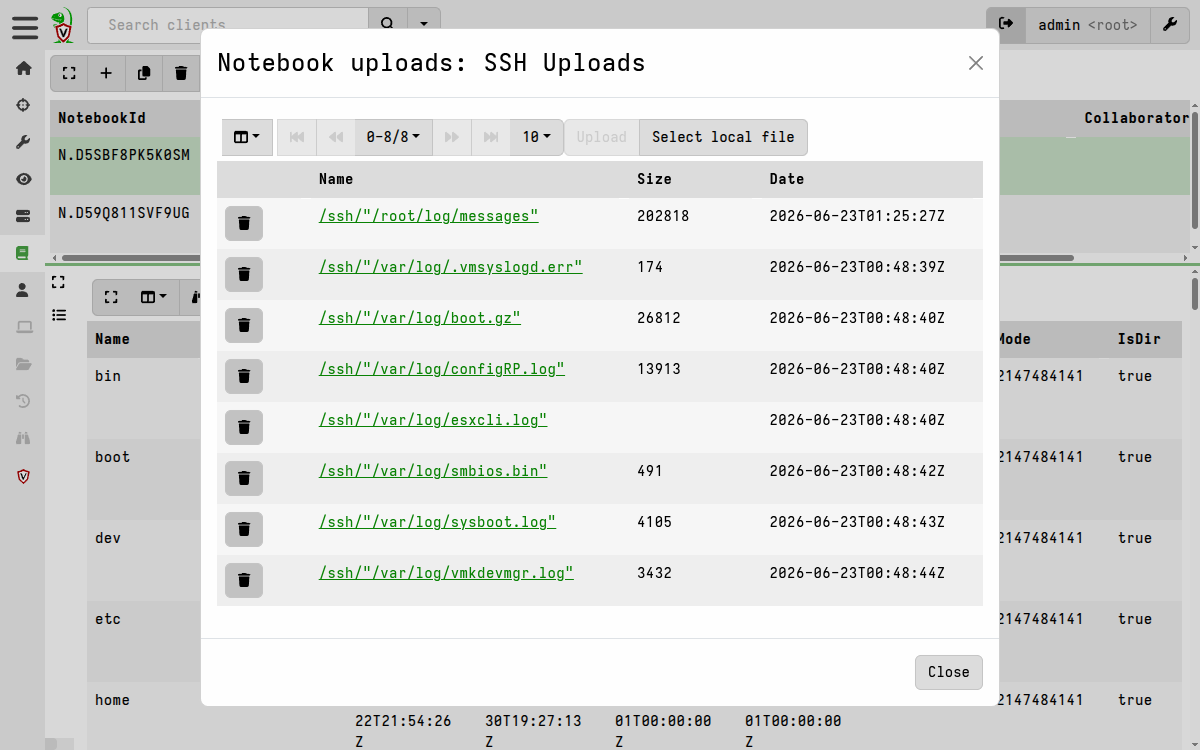
The ColumnTypes variable causes the notebook to render the
FileUpload column as the preview_upload type, which then lets
you use the GUI’s File Inspector utility to view the file contents.
Example: Reading a file over SSH
With functions and plugins that support accessors, you can use the
ssh accessor to do analysis on the files in-place.
If you’re doing a lot of queries in a notebook against the same remote
filesystem, you can create a
notebook template
that includes an export section.
VQL in the export section is executed before each cell runs, so it
is a convenient way to share the SSH connection information between
notebook cells.
name: Custom.Notebook.SSH
type: NOTEBOOK

export: |
  LET SSH_CONFIG <= dict(secret="openwrt")

# Define the cells that make up the notebook
sources:
  - notebook:
    - type: vql
      name: File Read
      template: |
        SELECT *
        FROM parse_lines(filename='/root/log/messages', accessor='ssh')
    - type: vql
      name: File Upload
      template: |
        SELECT OSPath,
        Mtime,
        Size,
        upload(file=OSPath, accessor="ssh") AS FileUpload
        FROM glob(globs='/root/log/messages', accessor='ssh')
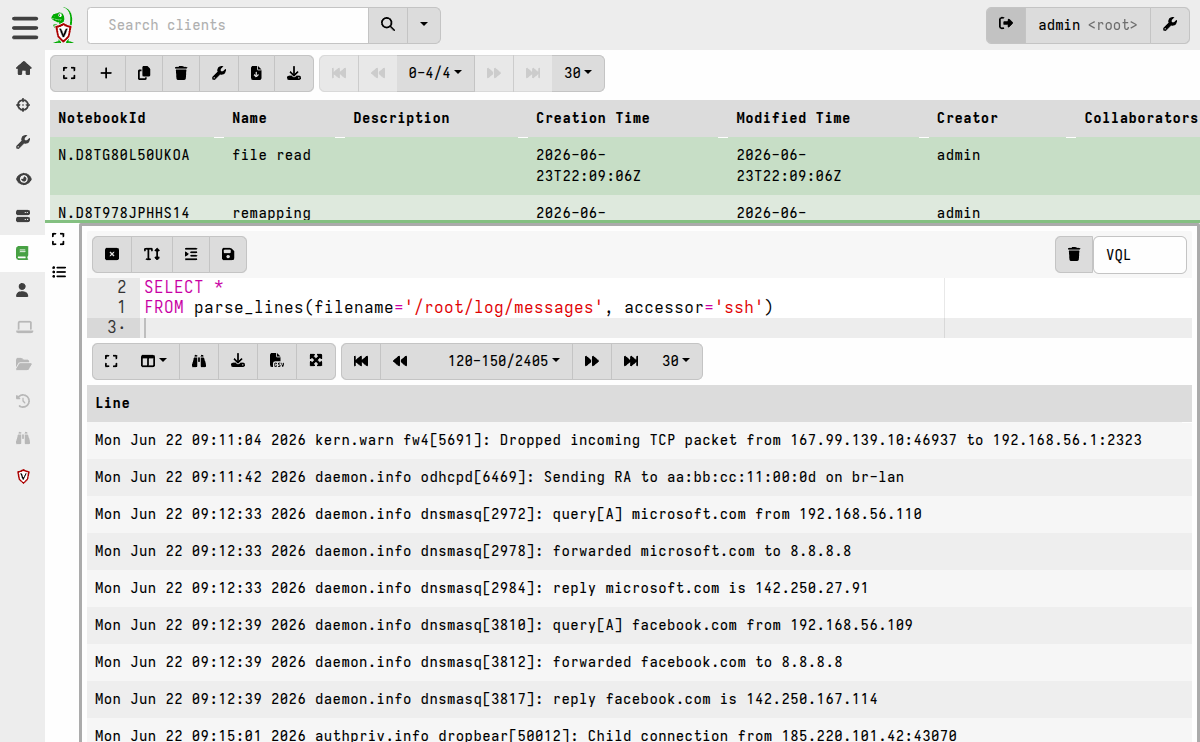
When a new notebook is created from this template, it will prepend the
VQL in the export section to the VQL in each cell before executing
it. In this example the notebook cell will be immediately populated
with lines read from the target log file, via SSH.
2. Artifact collections via notebooks
For Linux system, most artifacts are file-based, so you can run them in a notebook by simply using the Artifact plugin, for example:
SELECT * FROM Artifact.Linux.Sys.Users()However, the standard artifacts default to the auto accessor for
file access, which tries to use the file accessor with fallback to
ntfs on Windows. The artifacts don’t know that they should use the
ssh accessor. So we need a remapping config applied to the notebook
scope that intercepts regular file access and substitutes it with SSH
access.
Following the pattern of the previous example, let’s create another
notebook template that includes the needed remapping config in it’s
export section. This will then be applicable to all cells in the
notebook.
The remapping config remaps the remote filesystem tree from /, and
disables functions and plugins that will either not work or give
misleading results due to being run on the local system rather than
the remote host.
name: Custom.Notebook.OpenWrtViaSSH
description: Maps the filesystem from host openwrt via ssh accessor remapping
type: NOTEBOOK

export: |
  LET remapping <= remap(
      config=dict(
        remappings=(
          dict(
            type="impersonation",
            os="linux",
            hostname="target-hostname",
            disabled_plugins=("execve", "http_client", "pslist", "connections", "netstat", "filesystems", "partitions", "proc_yara"),
            disabled_functions=("sysinfo", )),
          dict(
            type="mount",
            scope='LET SSH_CONFIG <= dict(secret="openwrt")',
            `from`=dict(
              accessor="ssh",
              prefix="/"),
            `on`=dict(
              accessor="auto",
              prefix="/",
              path_type="linux")),
          dict(
            type="mount",
            scope='LET SSH_CONFIG <= dict(secret="openwrt")',
            `from`=dict(
              accessor="ssh",
              prefix="/"),
            `on`=dict(
              accessor="file",
              prefix="/",
              path_type="linux")))))

  LET ColumnTypes <= dict(`FileUpload`='preview_upload')

# Define the cells that make up the notebook
sources:
  - notebook:
    - type: vql
      name: Call an artifact
      template: |
        SELECT * FROM Artifact.Linux.Sys.Users()
When a notebook is created from this template, the remapping applies and queries run against the filesystem of the remote host over SSH.
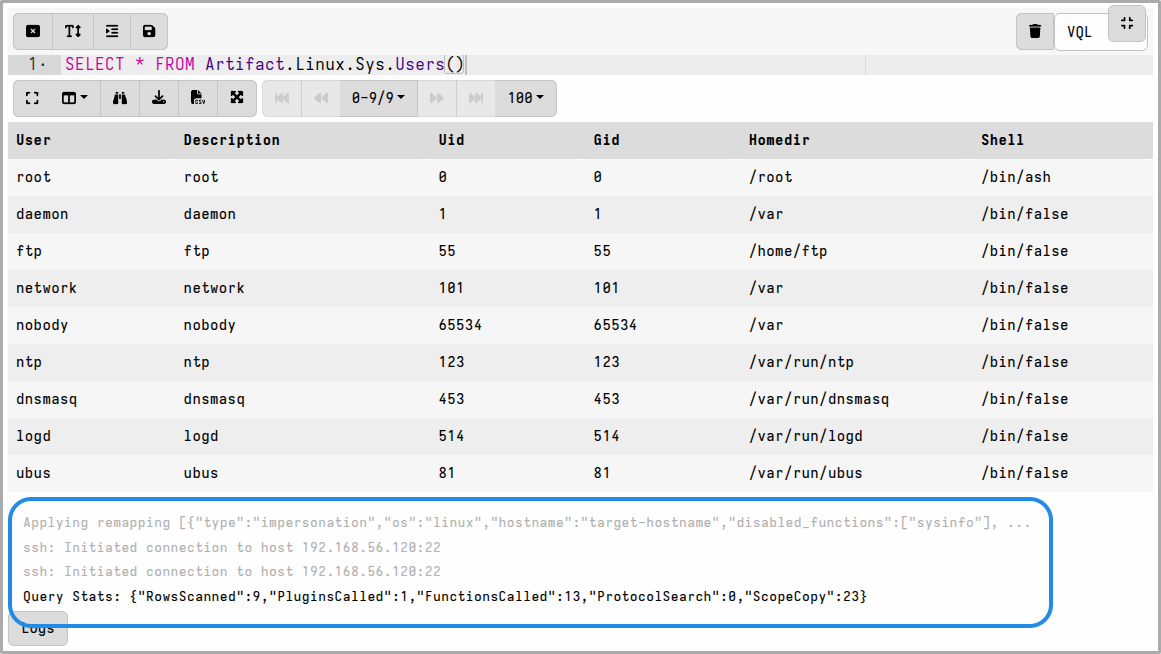
You can create more cells and each of them will inherit the remapping config, so it’s basically the same as running artifacts live on the remote host.
3. Server artifacts (reusable across multiple SSH hosts)
Since notebook templates are just artifacts, it’s easy to adapt the previous example into a server artifact. However, to make it reusable for other hosts we can parameterize some of the values used in the remapping config.
We cannot keep the remapping in the export section of
the artifact, as we did in the previous example, because VQL in
export cannot use artifact parameters. We can, however, add it to a
source so that it’s available to all subsequent sources. The
format() function is used to replace values in the remapping config
with parameter values.
name: Custom.Server.Remap.FilesystemViaSSH
description: Remaps the filesystem from remote hosts via the ssh accessor and runs some artifacts
type: SERVER

parameters:
  - name: hostname
    default: alpine
  - name: secretname
    default: alpine
  - name: RemappingTemplate
    default: |
      remappings:
      - type: impersonation
        os: linux
        hostname: %q
        disabled_plugins:
          - execve
          - http_client
          - pslist
          - connections
          - netstat
          - filesystems
          - partitions
          - proc_yara
        disabled_functions:
          - sysinfo

      - type: mount
        scope: |
          LET SSH_CONFIG <= dict(secret=%q)
        from:
          accessor: ssh
          prefix: /
        on:
          accessor: auto
          prefix: /
          path_type: linux

      - type: mount
        scope: |
          LET SSH_CONFIG <= dict(secret=%q)
        from:
          accessor: ssh
          prefix: /
        on:
          accessor: file
          prefix: /
          path_type: linux

sources:
  - name: Remap
    query: |
      LET remapping <= remap(config=format(format=RemappingTemplate,
                             args=[hostname, secretname, secretname]), clear=TRUE)
      SELECT * FROM info()
  - name: Users
    query: |
      SELECT * FROM Artifact.Linux.Sys.Users()
  - name: Mounts
    query: |
      SELECT * FROM Artifact.Linux.Mounts()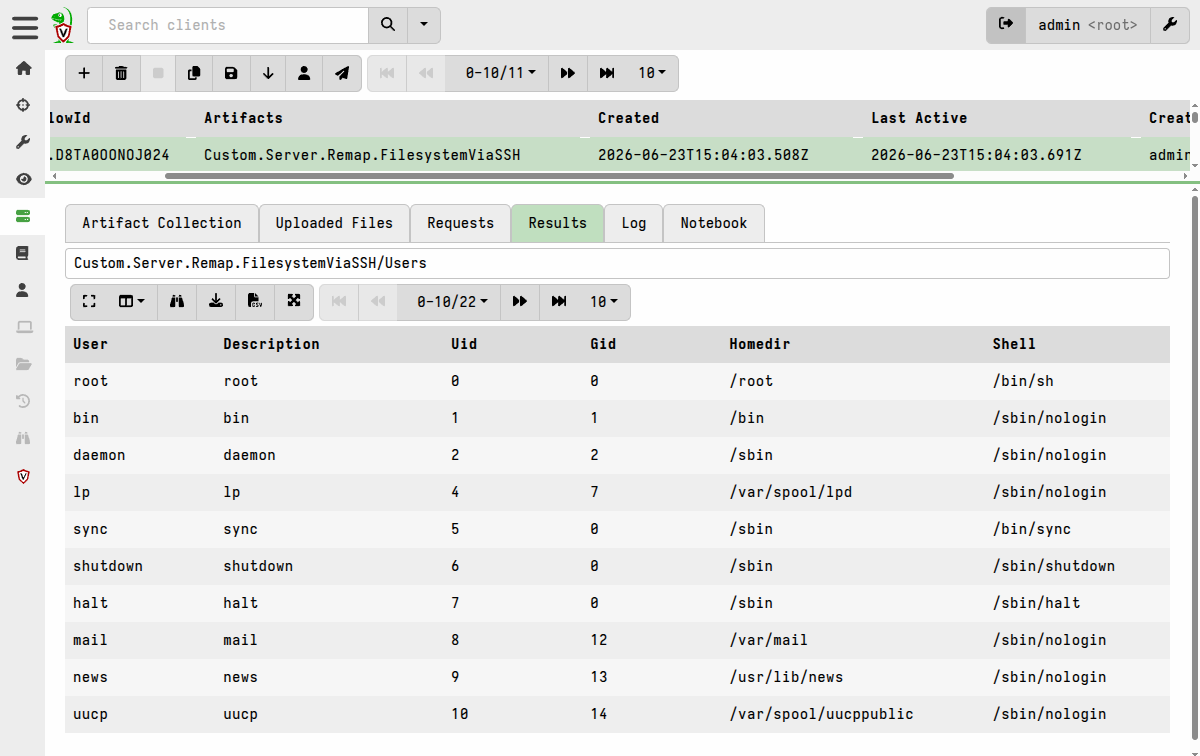
As with the notebook examples, you can use the upload() function, or
any artifacts that use the upload() function, and the files will be
uploaded to the server and attached to the collection.
Dedicated virtual client with SSH accessor remapping
If you want the SSH-accessible host to look and behave like a real client, that is: participate in hunts, be selectable in the GUI, etc. then the best option is to run a dedicated client for it that uses a remapping config file and impersonates the SSH-accessible system.
The dedicated client can run anywhere, provided it can reach the SSH target and the Velociraptor server. You may choose to run such dedicated “virtual” clients on the server itself, if resources permit that.
If the client is impersonating systems in a DMZ then you may choose to have a dedicated machine in the DMZ which runs multiple virtual clients, and then the only network connectivity requirement will be a single TCP port from that machine to the Velociraptor server (rather than needing to allow all hosts in the DMZ access to the Velociraptor server).
Because the virtual client is impersonating the target host and operating system, with SSH remapping the filesystem, it does not have to match the target host’s platform or architecture. You can run virtual clients on a Windows host that impersonates SSH-accessible Linux hosts, or any other combination you can think of.
Secrets can only be used on the server, but the virtual client needs to be able to run autonomously, which means the remapping file has to contain explicit credentials for accessing the SSH target. You therefore need to secure the virtual client host and the remapping file which contains the credentials to the same degree that you would for any other SSH keys.
Example: Creating a virtual client for an SSH-accessible OpenWrt router
- Create a remapping YAML file,
remap_openwrt.yaml, with a remapping config similar to this:
remappings:
  - type: impersonation
    os: linux
    hostname: openwrt
    disabled_plugins:
      - execve
      - http_client
      - pslist
      - connections
      - netstat
      - filesystems
      - partitions
      - proc_yara
    disabled_functions:
      - sysinfo

  - type: permissions
    permissions:
      - COLLECT_CLIENT
      - FILESYSTEM_READ
      - FILESYSTEM_WRITE
      - READ_RESULTS
      - MACHINE_STATE
      - NETWORK

  - type: mount
    scope: |
      LET SSH_CONFIG <= dict(hostname='192.168.56.120:22',
              username='root',
              private_key=read_file(filename='/velociraptor-clients/id_ed25519_openwrt'))
    from:
      accessor: ssh
      prefix: /
    "on":
      accessor: auto
      prefix: /
      path_type: linux

  - type: mount
    scope: |
      LET SSH_CONFIG <= dict(hostname='192.168.56.120:22',
              username='root',
              private_key=read_file(filename='/velociraptor-clients/id_ed25519_openwrt'))
    from:
      accessor: ssh
      prefix: /
    "on":
      accessor: file
      prefix: /
      path_type: linux

  - type: shadow
    from:
      accessor: zip
    "on":
      accessor: zip
  - type: shadow
    from:
      accessor: data
    "on":
      accessor: data
The impersonation section tells the client to impersonate a Linux
system named openwrt.
The two mount rules replace both the auto and file accessors
with the ssh accessor, so every file read operation goes through
SSH. It also specifies that Linux paths are expected, which is
necessary if the virtual client is running on Windows, for example.
The shadow rules pass through other commonly used
accessors.
The disabled_functions and disabled_plugins sections tell the
client not to use these as they would produce results from the host
machine rather than the remote SSH system.
-
Start the virtual client:
$ velociraptor client -v --remap /path/to/remap_openwrt.yaml \
    --config /path/to/client.config.yaml \
    --config.client-writeback-linux=/path/to/openwrt.writeback.yaml \
    --config.client-local-buffer-disk-size=0
The
--config.client-writeback-linuxflag is used to persist the client’s ID using a unique persistent writeback file. This overrides the default specified in the client config. If you have multiple virtual clients running on the same host then ensure that each one has a unique writeback file.
When the virtual client is running, the server sees it as a normal online client. You can:
- Browse its filesystem in the VFS browser
- Run client artifacts that use
autoorfileaccessors - Use the hunt manager to task it with collections like any other client
- Upload files from the remote system to the server
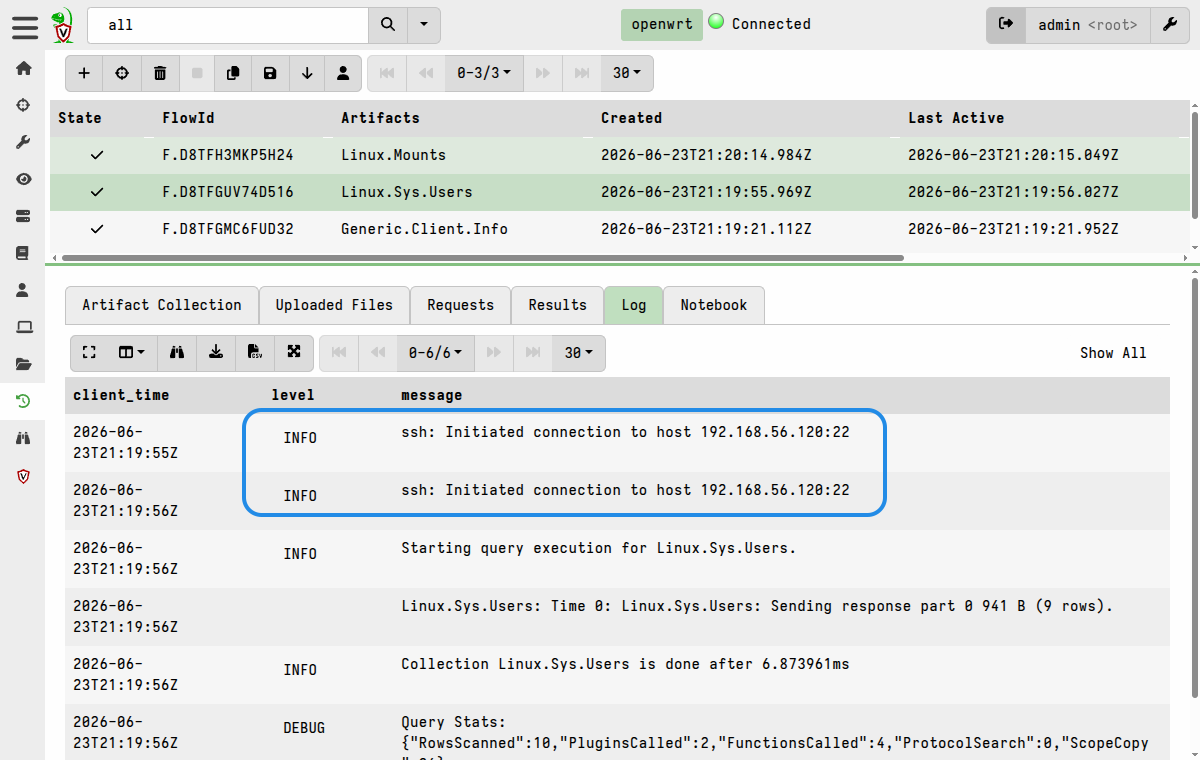
You won’t be able to run any queries on the client that require
executables (i.e. no execve() or shell commands), or that make OS
system calls on the remote system, since the SSH accessor provides
filesystem-only access.
In the above example, the client is being run manually on the command
line. For a persistent client you’d need to set it up as a service and
then modify its service configuration file to add the additional CLI
arguments. Alternatively you could create a custom client config file
for the virtual client that uses a hardcoded unique writeback file and
the remapping can be included in the client config (remappings are
actually just a separate section of config that gets merged when using
the --remap flag).
Resource consumption
Because the SSH accessor streams file data over the network for every read operation, it can be slower than a local Velociraptor client. Consider using the resumable uploads feature for large file transfers over unstable network connections.