Notebooks
Notebooks are interactive collaborative documents which can interleave markdown and VQL queries in to create an interactive report. Notebooks are typically used to track and post process one or more hunts or collaborate on an investigation.
Let’s create a notebook to see the feature at work.
-
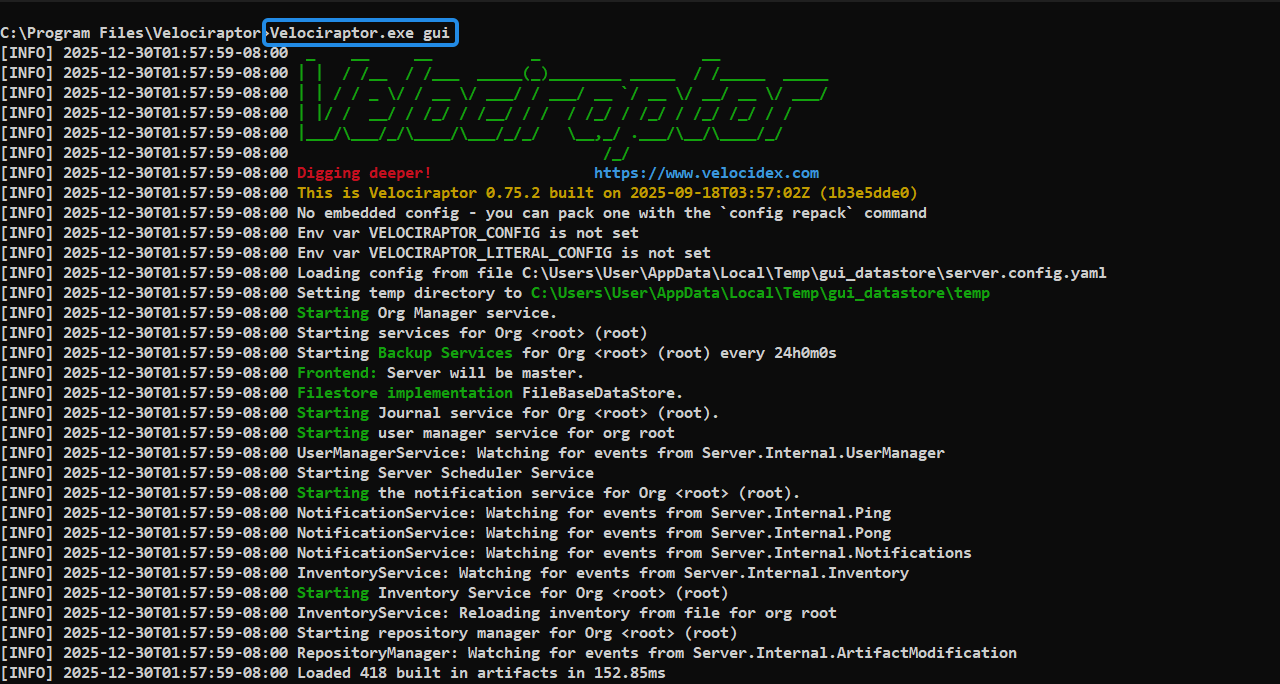
Start the Velociraptor GUI. You can do so easily by running
velociraptor.exe gui. This will create a new server configuration and start a new server on the local machine. It will also start a local client communicating with the server. -
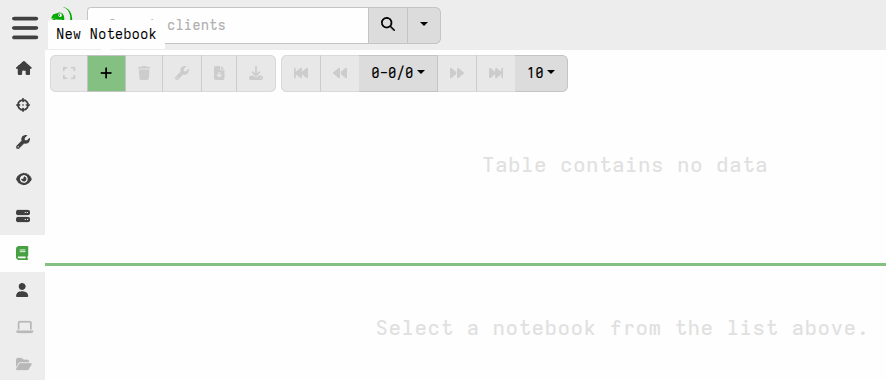
Select Notebooks from the sidebar menu then “Add Notebook” .
-
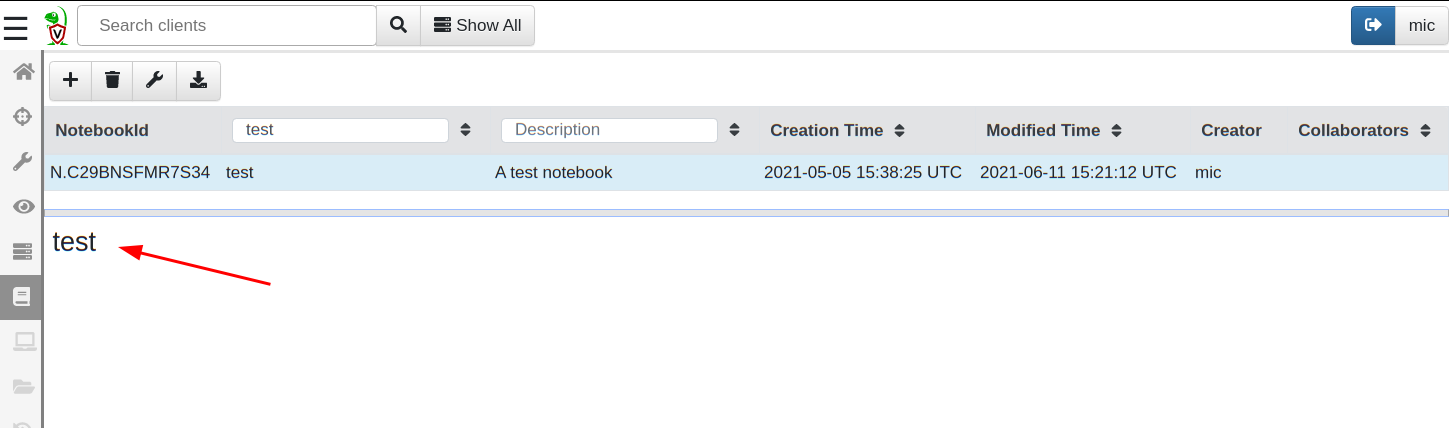
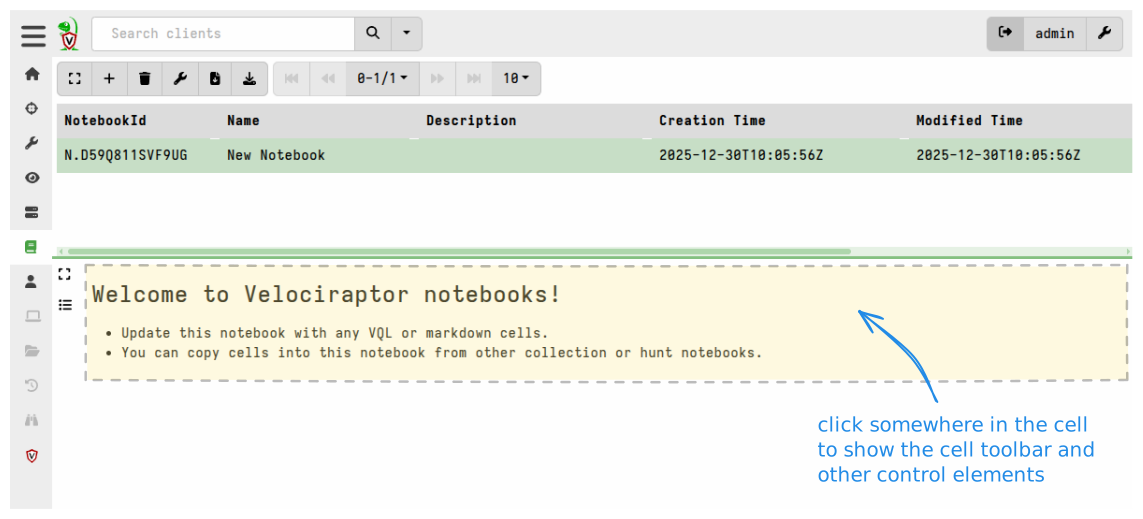
Give the notebook a name and a description and submit. The new notebook is created.
-
Click on the cell to give it focus and the cell control toolbar will be shown, from here click the
Edit Cellbutton to edit the cell contents.
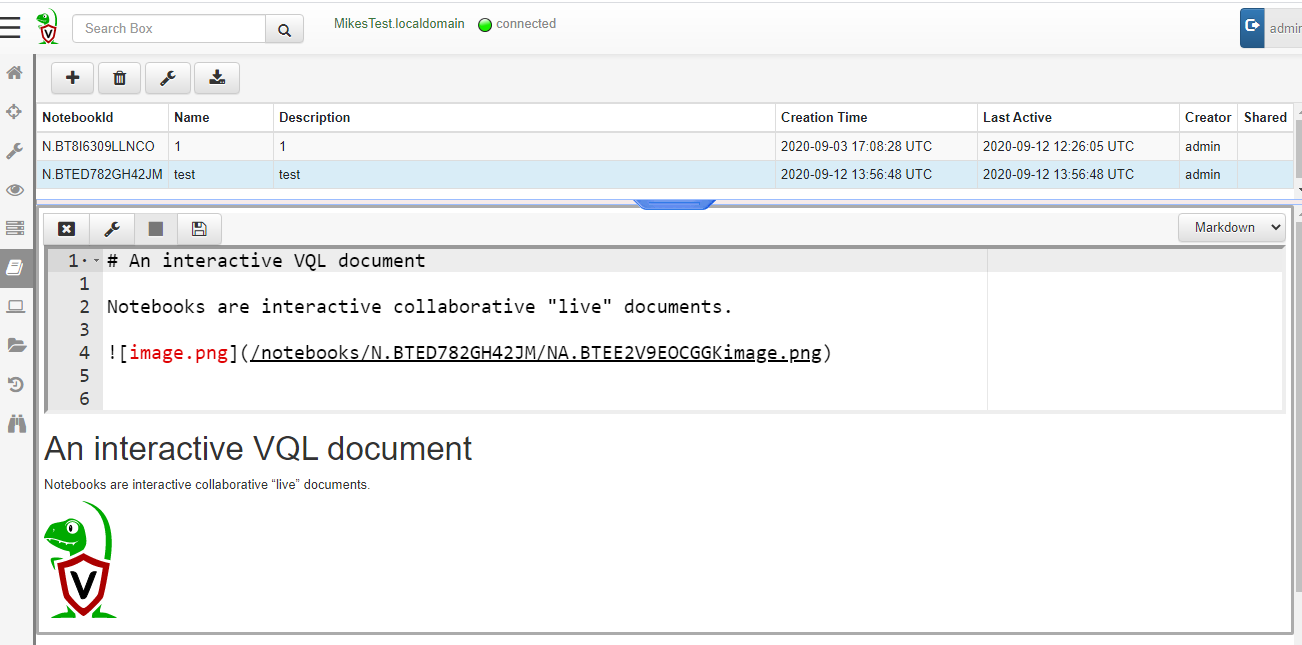
There are two types of cells: A Markdown cell receives markdown text
and renders HTML while a VQL cell can receive VQL queries. The cell
type is shown on the right hand side of the cell toolbar. You may
change cells from one type to the other at any time.
-
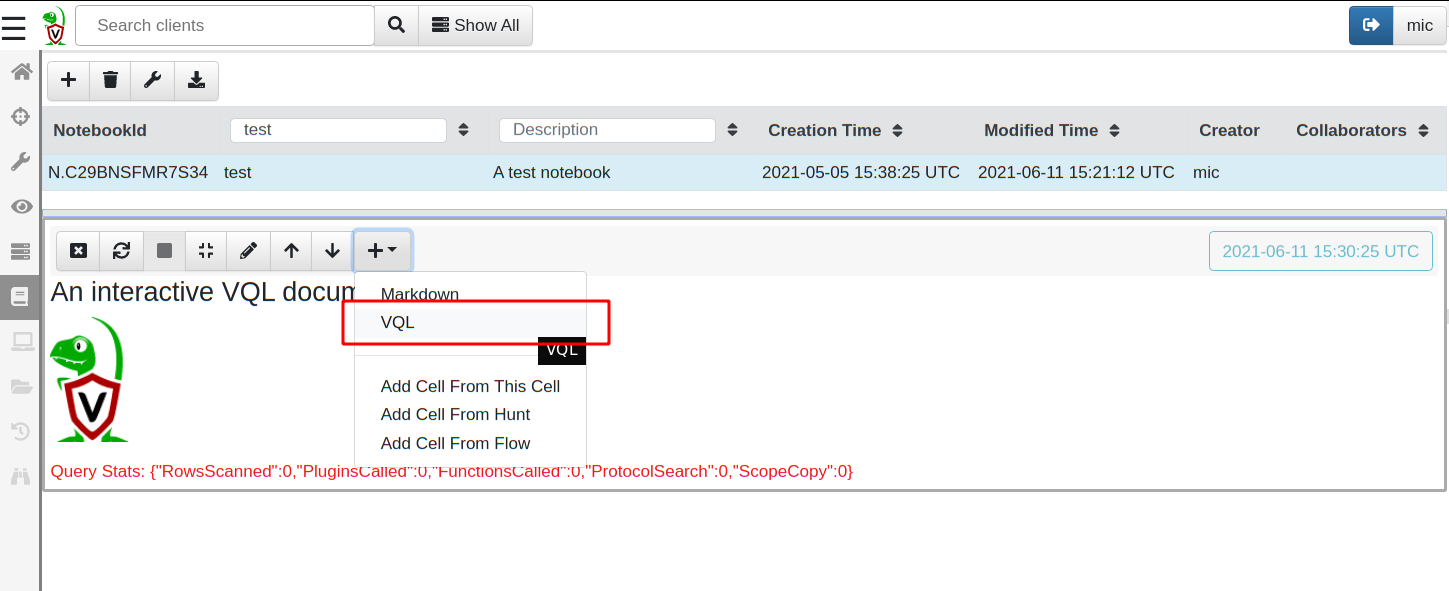
Let’s add a new cell to the notebook. Click the
Add Cellbutton and a pull down menu appears offering the type of Cell that can be added. For now, select aVQLcell.
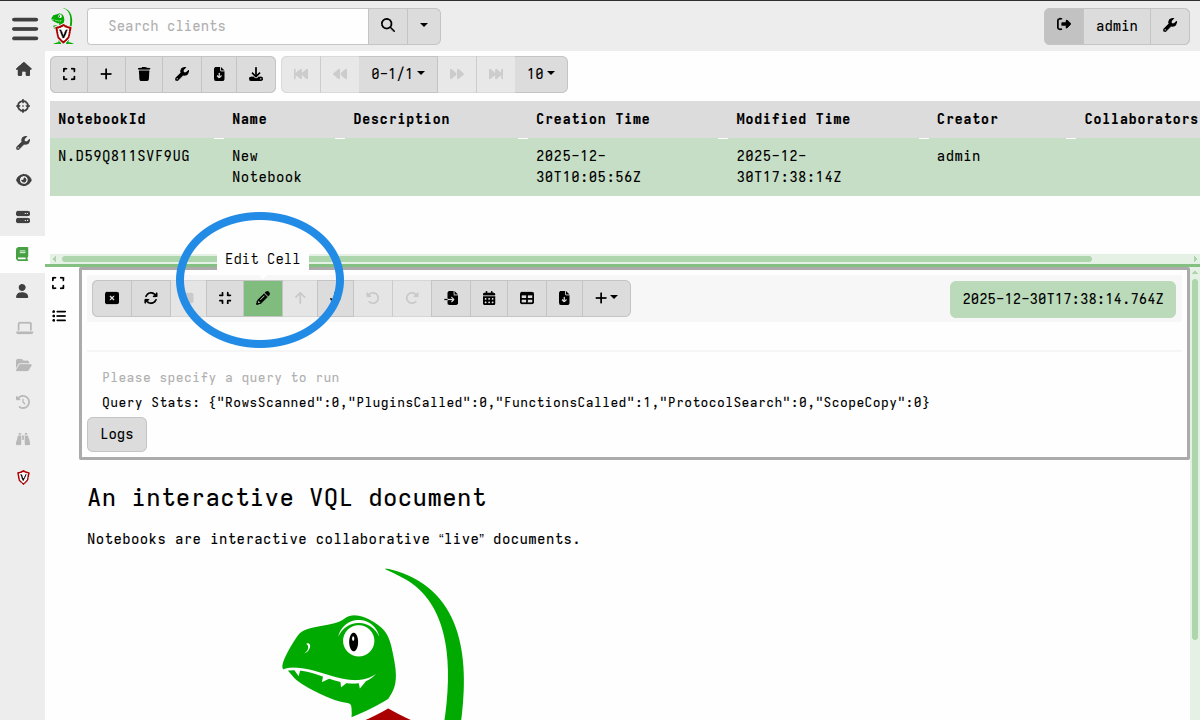
After clicking the Edit Cell button, you can type VQL directory into
the cell. As you type, the GUI offers context sensitive suggestions
about what possible completions can appear at the cursor.
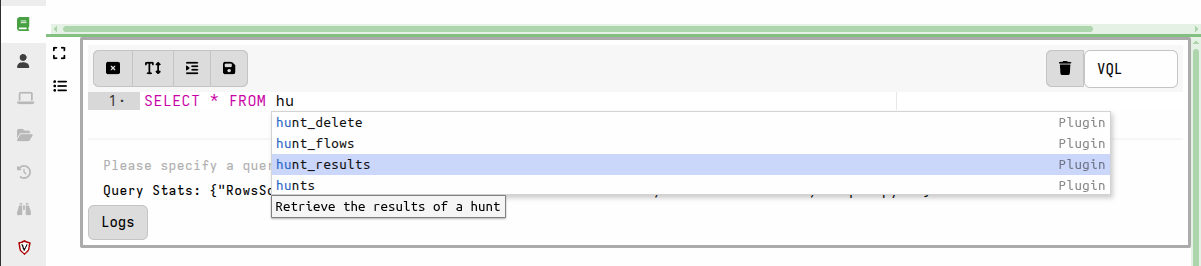
Use your up and down arrow keys to navigate the suggestions, and Enter or Tab to select a suggestion. Typing “?” will show all possible suggestions.
Suggestions are context-sensitive, so VQL plugins which can only
appear after a FROM clause will only be suggested when the cursor
appears after a FROM.
Let’s type the following VQL query into the VQL cell:
SELECT * FROM info()
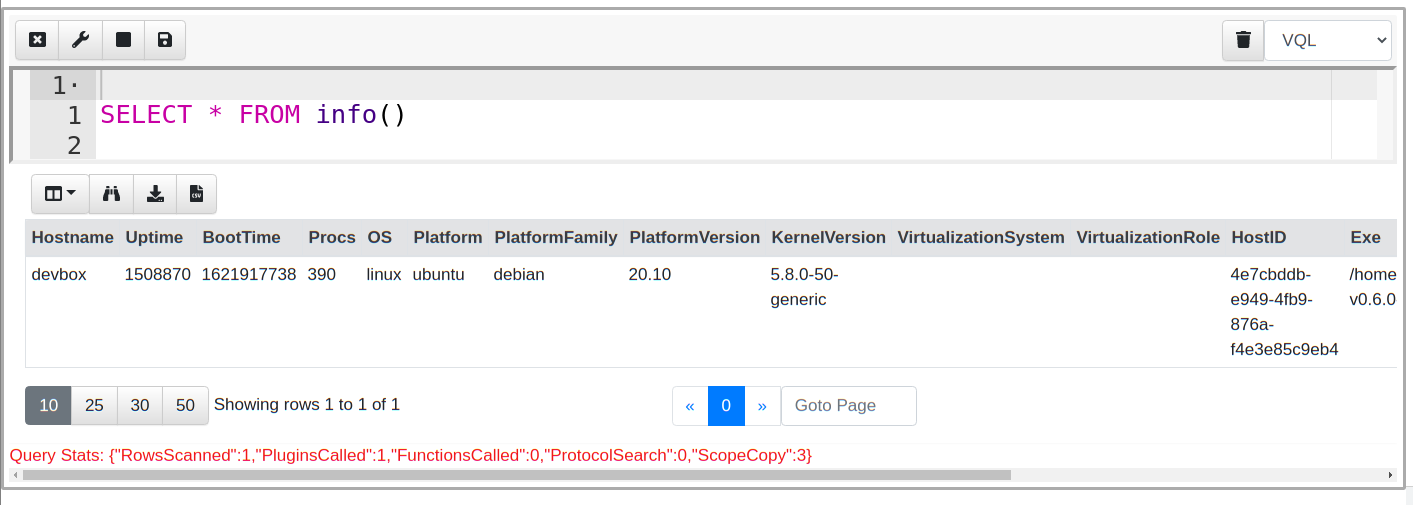
The notebook may be switched into full screen mode via the notebook toolbar, which is useful when dealing with large tables. With this setting, the notebook takes up the entire width of the screen.
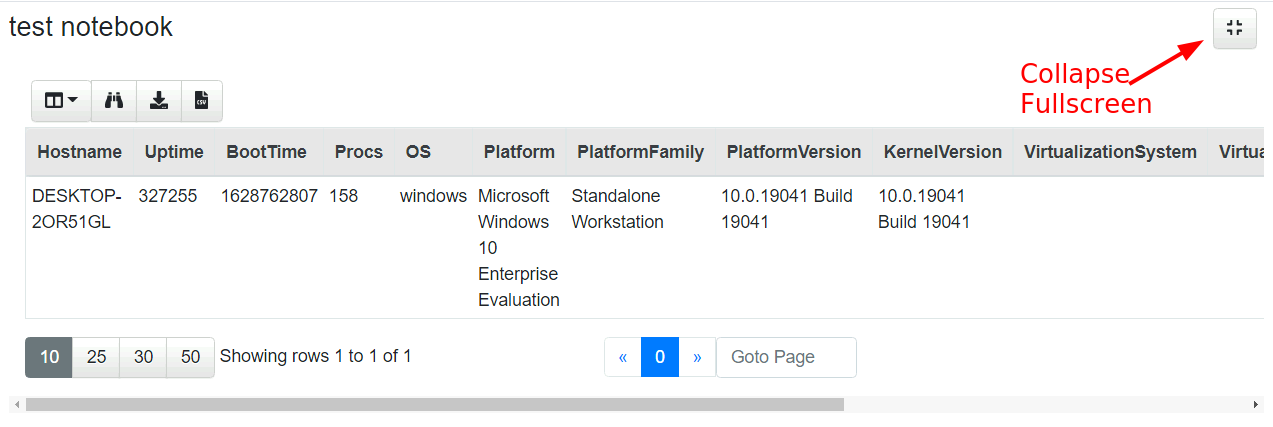
You can switch back to the pane view by clicking on the collapse button at the top right of the screen.
Hunt and Flow Notebooks
Notebooks are an excellent medium to run arbitrary VQL queries. Much of the time, these queries are used to post-process the results from collections or hunts.
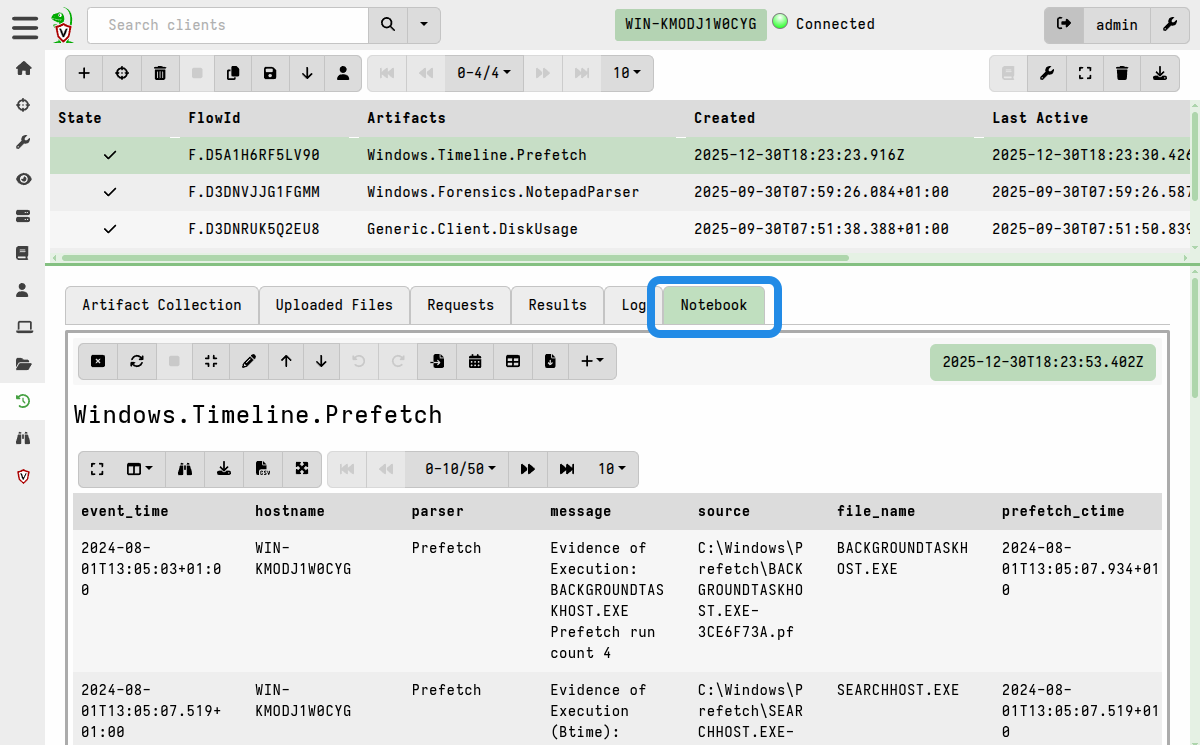
Therefore Velociraptor automatically creates a hunt notebook for each hunt and a flow notebook for each collection.
For example, here we collected the Windows.Timeline.Prefetch artifact and can
view it’s results in the collection (flow) notebook.
Sharing Notebooks
By default, notebooks are private to the user who created them. When creating or editing a notebook, you can choose to share it with all users by clicking the Public check box. You can also share it with only certain users by selecting their names in the Collaborators field.
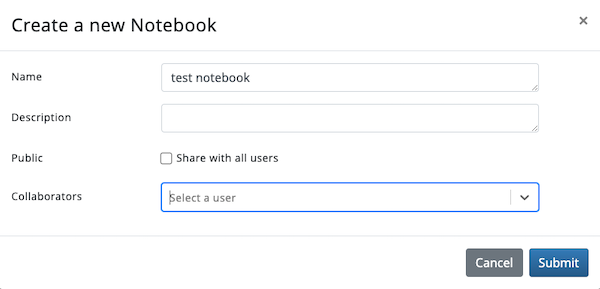
You can edit the sharing and other properties of a notebook via the Edit Notebook () button in the notebooks toolbar.
Users can only view notebooks that they own or share. Other notebooks cannot be accessed from the list view or via direct link.
However, the data within notebooks is still available to all users. For example, any notebook editor can build or view a timeline from private notebook cells if they know the notebook and cell IDs. This can be useful for providing your team with data views that are sourced from more complex queries maintained in a private notebook.