Local Documentation Search
From version 0.76, the Velociraptor documentation can be searched and previewed in the GUI.

This local search feature is designed for speed and convenience, and can be a helpful resource when internet access is restricted or unavailable, such as during critical security investigations in isolated environments.
You can access the local documentation search by clicking on the icon in the app footer area.
The local documentation is intended for quick documentation lookups, or for use in situations where the Velociraptor documentation website is inaccessible, perhaps when you are working from a network where internet access is restricted or severely degraded. Such circumstances are sometimes encountered when responding to serious security incidents. So if you’re planning to take your Velociraptor server into a bunker, you can prepare it with local documentation before you go.
In other words this feature is intended for convenience or for unusual
situations, in a similar way to how the
vql list CLI command
allows you to quickly look up VQL-related help when you are working on
the command line. It does not fully replicate all aspects of the
documentation website, and it’s not intended to replace it.
In particular, you should be aware of the following differences:
- Links within the offline docs will send you to the documentation website, rather than allowing you to navigate within the local docs. You should avoid clicking links in the local documentation if you don’t want to be sent to the documentation website.
- Some internal navigation links that you would see on the website are not shown in the offline docs.
- Images are not stored locally and will therefore not be displayed if access to the documentation website is unavailable.
Installing the local documentation index
The documentation index is not included in the Velociraptor binary. It
is technically managed as a
tool
in the root
organization
(org), and is
automatically downloaded to the server the first time any user tries
to search the local docs.
If a documentation search is done within a non-root org, the search
request is redirected to the root org. This ensures that
documentation is shared globally across the platform rather than
requiring every org to maintain its own copy of the docs index.
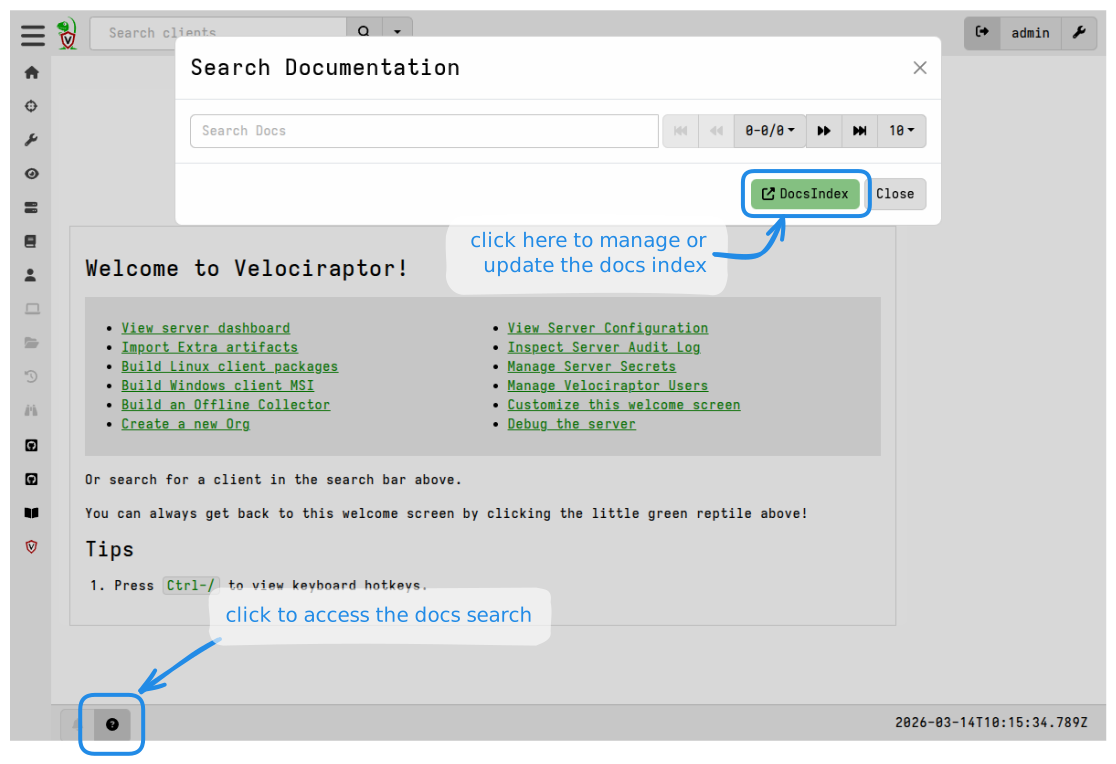
In situations where internet access is not available you can manually download the index from
https://github.com/Velocidex/velociraptor-docs/raw/refs/heads/gh-pages/docs_index/docs_index_v1.zip
and upload it into the tools inventory, as you would do with other tools in an offline server situation.
If you are pre-populating the tools inventory on a server in advance
of working offline, the
Server.Utils.UploadTools
artifact will include the docs index in the tools package that it
downloads.
Query syntax
The full Bleve query syntax is documented on their documentation site . Here we discuss only the most relevant query constructs.
Terms vs Phrases
Words separated by spaces are considered terms and are searched for independently of each other.
For example, the query windows client will return results matching
either windows or client, with results that contain both terms
being ranked higher in the results.
A search phrase is multiple words enclosed within quotes.
For example, the query "windows client" (with quotes) will return
results matching that full phrase, but not the individual words
windows or client.
Required, Optional, and Exclusion Terms
You can require that a term or phrase match by prefixing it with a
+. For example, the query +"offline collector" +debug requires
that both the term debug and the phrase offline collector MUST appear
in search hits.
Conversely, you can exclude a term or phrase by prefixing it with -,
meaning this term or phrase MUST NOT be in any of the results.
If neither + nor - are specified then the term or phrase is
considered “optional”. If it does appear in any of the results then it
is used to increase the rank of these results.
Field Scoping
In our documentation index, the following fields are available for query scoping:
- title: the title of the page.
- text: the full body text.
- tags: classification tags.
- crumbs: the path components for the page.
To search in a specific field, you can add the field name as a search
operator. Usually the + prefix is also added so that it is
required that the search term or phrase appears in that field.
For example, the query +title:"event query" will only search in the
page titles.

Notice that in the above example, the word query also matches
queries due to stemming, i.e. queries is derived from the stem
word query.
You can combine multiple fields in your query to produce very precise
matching, for example
+tags:Docs +title:offline +text:export
will search for pages with both offline in the title and export
in the body.

Searching with crumbs
A breadcrumb or breadcrumb trail represents the path to a page, or a set of pages within the site’s navigational structure.
So if you perhaps have the URL for a page on the docs website, or just
want to limit your search to within a certain area of the website you
can apply the crumbs scope to your query.

Searching with tags
If you’re not sure exactly what keywords to search for you can also search by tag. Or you can combine tags with your terms/phrases in the query to improve the ranking of the most relevant results.
For example
Do a search for your keywords. This will give you a list of all results, regardless of tags.
On the list you can click on one or more tags to add them to your search criteria.
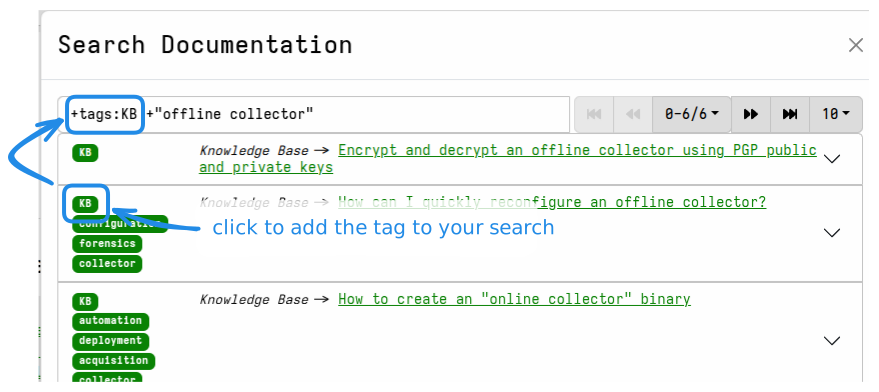
- If necessary, you can now adjust your query so that it searches only within pages having the selected tag.
You can also use the query +tags to see all pages with tags, which
might help you with choosing an appropriate tag.