Dead Disk Analysis
Velociraptor works best when running on a live endpoint, where it can correlate information from disk with information provided by the endpoint’s operating system - for example, with memory and other volatile sources. Running clients on live endpoints should always be your first choice as it presents the richest source of data.
While increasingly impractical due to the size of modern hard drives, and despite technologies such as TRIM protocols on ubiquitous SSD drives making it very unlikely to recover deleted data, disk imaging is still often used to preserve disk-based evidence. It’s important to note that if you have made a disk image that doesn’t preclude you from using a live client on the endpoint and only falling back to dead disk analysis if the live endpoint becomes unavailable. If you resort to dead disk analysis when the live endpoint is still available then you are limiting your investigative options and efficiency by choice.
However, sometimes we just don’t have the luxury of running a client on the live endpoint, and instead we have to rely on disk images of the target system - for example, we might be handed a clone of a cloud VM disk after a compromise and have no say in the matter (e.g. the original VM may already have been destroyed).
Velociraptor’s remapping feature makes it possible to impersonate a live system and provide access to the disk image as if it was a real disk attached to the client. While there are inherent limitations associated with this approach, it allows us to use most Velociraptor artifacts directly without any changes. It allows Velociraptor to be applied to more traditional image-based forensic analysis use cases, while leveraging the same artifacts that are used on live endpoints.
How it works
This process of host emulation is controlled via remapping rules, defined in a
dedicated section of the configuration file. In practice this section of the
config is usually kept in a separate YAML file and merged with the client’s
config using the --remap CLI flag.
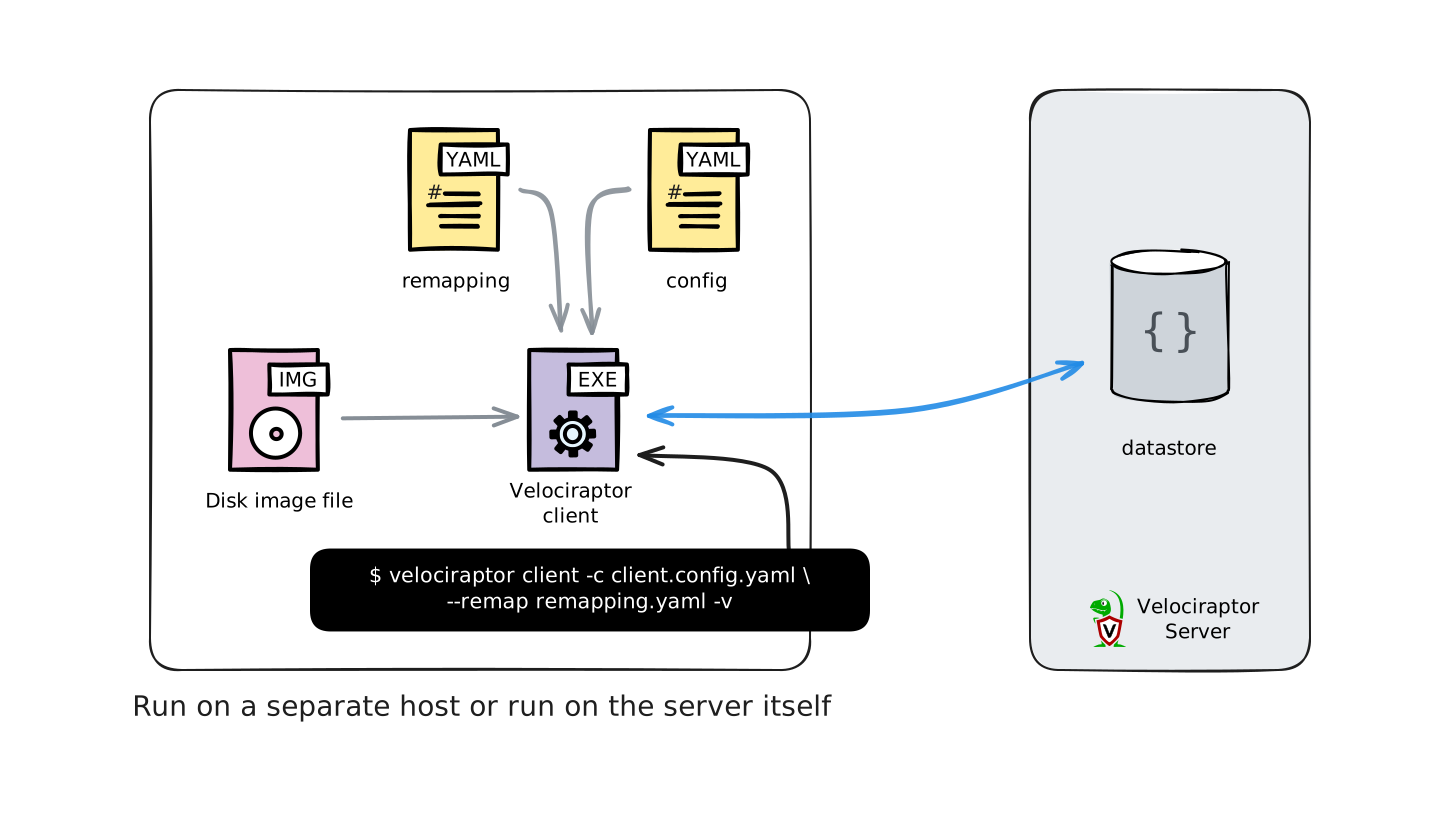
Velociraptor can use the same accessor remapping & impersonation approach with offline collection containers.
Accessor Remapping
The Velociraptor client normally interrogates the host it is running on. However for disk image analysis we want the client to emulate the system under investigation so that when it attempts to access the filesystem it is really parsing the filesystem contained in the disk image. Under no circumstances should the client report data from the analysis machine itself.
For example, a VQL query that accesses the filesystem on a live endpoint (e.g.
via the glob() plugin), should look inside the disk image instead of looking
at the local filesystem of the analysis machine. Paths to files contained in the
disk image should exactly emulate those on the original endpoint - this is
necessary so that artifacts which expect files to be in standard locations will
be able to find them without any explicit path adjustments. In query results,
the file paths should be reported exactly as they would have appeared in the
filesystem on the endpoint.
Velociraptor accesses files using filesystem accessors. You can think of an accessor as simply a driver that provides access to a file or directory. Velociraptor actually provides many types of accessors for filesystems and other data sources.
When accessing a Windows NTFS filesystem the following accessors are commonly used:
-
The auto accessor is the default accessor used when an accessor is not explicitly specified. The query
SELECT * FROM glob(globs='/*')will use theautoaccessor since an explicitaccessorparameter is not provided.On Windows the
autoaccessor attempts to open files using the OS API and failing this, reverts to NTFS parsing (for locked files). This is the most commonly used accessor. -
The file accessor uses the operating system APIs to open files and directories. It is used internally by the
autoaccessor but you can also use it explicitly. -
The ntfs accessor is used to access files using the built in NTFS parser.
When accessing a disk image that contains an NTFS filesystem, we apply
remapping rules
that translate requests to the abovementioned accessors into
compound pathspec objects
which include additional (delegate) accessors such as vmdk and raw_ntfs.
This mechanism transparently provides access via the filesystem of the local
host, the disk image, and partitions and filesystems in the image, etc.
Similarly, for access to the Windows registry we construct remapping rules that use compound pathspecs to provide access via the various container layers, and ultimately present simple registry paths to VQL queries, as they would appear on a live Windows endpoint. An artifact that queries the registry using the operating system’s APIs will now automatically query the raw registry parser which accesses the hive file, which is accessed by parsing the NTFS filesystem within the disk image.
By remapping the accessors typically used in a live scenario, we are allowing the same VQL queries to apply to a very different (dead disk) scenario without any changes.
For example, this is a remapping rule that provides access to the Windows SOFTWARE registry hive inside an EWF-format disk image:
- type: mount
  description: Map the /Windows/System32/Config/SOFTWARE Registry hive on HKEY_LOCAL_MACHINE\Software
    (Prefixed at /)
  from:
    accessor: raw_reg
    prefix: |-
      {
        "Path": "/",
        "DelegateAccessor": "raw_ntfs",
        "Delegate": {
          "DelegateAccessor":"offset",
          "Delegate": {
            "DelegateAccessor": "ewf",
            "DelegatePath": "/media/disk_images/ewf/win7.E01",
            "Path": "1048576"
          },
          "Path":"/Windows/System32/Config/SOFTWARE"
        }
      }
    path_type: registry
  "on":
    accessor: registry
    prefix: HKEY_LOCAL_MACHINE\Software
    path_type: registry
While this may sound complicated - and to be fair complex pathspecs and nested accessors are quite an advanced topic - Velociraptor includes artifacts that can inspect the disk image and automatically generate an appropriate mapping for the most common disk layouts (primarily Windows), or at least provide you with much of the relevant information when automatic remapping generation is not possible.
So you don’t really need to understand the details to be able to generate a remapping config. In most cases all you need to do is run an artifact which generates the remapping, and then use it!
If you’re curious, or want to manually create remapping rules for more unusual scenarios, we explain accessor remapping in more detail in this blog post.
Host impersonation
Many artifacts need to examine more than just the filesystem. For example, most
artifacts have a precondition
such as SELECT * FROM info() WHERE OS =~ "windows". If we were to run on a
Linux system these artifacts will not work since they are intended to work on
windows - despite the accessor remapping rules emulating a Windows filesystem.
The client therefore needs to also present itself to the server as running the same operating system family as the original system (e.g. Windows) so that artifacts with OS-based preconditions or logic can be run, and so that hunts targeting the original host’s platform will still apply.
We therefore need to impersonate a Windows system, even though we might really be running the client on a Linux machine. Because the client is impersonating the original host and emulating its filesystem, it does not have to run on the same platform as the original host. You can run it on your Velociraptor server, which is probably running on Linux, or you can run the virtual client on a separate host which could be running Windows, Linux or macOS.
Here is an example of an impersonation rule:
- type: impersonation
  os: windows
  hostname: VirtualHostname
  env:
  - key: SystemRoot
    value: C:\Windows
  - key: WinDir
    value: C:\Windows
  disabled_functions:
  - amsi
  - lookupSID
  - token
  - ...
  disabled_plugins:
  - users
  - certificates
  - handles
  - pslist
  - ...
This impersonation rule implements the following changes:
-
The OS is set to
windows. This affects the output from theinfo()plugin which the client uses to gather host information from the local system, and which is often used in artifact preconditions. This allows you to run the dead disk client on a different platform while impersonating the original platform represented in the disk image. -
The Hostname is set to
VirtualHostname. This replaces the hostname value from theinfo()plugin. This hostname will be returned by client interrogation, and will therefore be used for the virtual client in the Velociraptor GUI. -
Artifacts often use paths constructed from environment variables, for example
SystemRoot=C:\Windows, and reasonably expect the most common ones to be present when running on a live endpoint. In the remapping config we can define environment variables that will be available to any VQL that the client runs. -
Many artifacts use plugins and functions that query non-disk system state, often in order to enrich the collected data. That is, their output does not depend only on disk-based data. Using the disabled functions and plugins sections in the impersonation rule, we can disable such plugins and functions so that they return no data rather than failing or returning incorrect information. This allows queries that use them to complete without failing.
To allow for this, the remapping lets us define the OS and hostname. When evaluating VQL and communicating with the server, the client uses the impersonated values.
Impersonation aims to make it appear that the VQL artifacts are being collected from the original system as if it were running live.
Limitations
The data available to a dead disk client is significantly more limited than a client running on a live endpoint, since the original OS is not present and only the filesystems contained in the image will be available to any VQL queries.
Remapping configs for dead disks disable VQL functions and plugins that return data from non-disk sources. This is done to prevent data contamination from the analysis machine’s OS. This disablement of functions and plugins is done automatically when the remapping is generated by our built-in artifacts. This means that some artifacts will return no data if they rely on data sources other than filesystem (contained in the disk image). Artifacts that rely purely on files should reliably produce meaningful results.
Artifacts that use external tools cannot be used on files stored in the disk image, since the remapping only applies to VQL via it’s internal accessor model. External tools will be unaware of the remapping and will be unable to find the files.
Process Overview
To summarize the above: Analyzing a disk image is usually a 3-step process.
-
Create a remapping configuration
This may require some preparatory steps such as converting or mounting the image if it’s an unsupported type. The remapping config can be generated either via the CLI’s deaddisk command, or in the GUI using the
Generic.Utils.DeadDiskRemappingserver artifact. For non-standard partition layouts you might have to manually craft an appropriate remapping config, although you can generate one for a simple disk image and then use that as a reference/starting point. -
Run a virtual client using the remapping
The second step is to start a client that will impersonate the original system using the remapping config. This client can be run locally on the Velociraptor server or on a remote host. It will enroll with the server and be manageable as a normal client in the GUI.
-
Run collections against the virtual client
Since the client is a normal client from the server’s perspective, it can have collections run individually on it, join hunts, accept labels, etc. Anything you would do with a normal client. Note however that it is pointless to collect artifacts that rely on non-disk data sources, as these will return no data. The general idea is that the client can be treated as a live client, so that you don’t need to make any distinction between it and live clients that your server is managing.
In the case of simple Windows disk images, it is also possible to combine the
first 2 steps by using the Server.Utils.DeadDiskClient server artifact.
The following pages describe these above steps in more detail.