Exporting Bulk File Collections
As described in the accessing file uploads on the server section, file uploads can be individually downloaded from the GUI.
However, bulk file collections that upload many files will sometimes need to be exported in bulk for purposes such as external analysis or evidence preservation.
This section explains how to export uploaded files in bulk from a collection or a hunt.
The export process
The process of exporting files in bulk involves two steps.
-
Prepare the download by clicking the Prepare Download button.
This copies all files in the collection or hunt into a single collection container, which is a specially structured zip file that can be imported on other Velociraptor servers. The zip also includes all the JSON collection data - not just the file uploads. You can optionally choose to include the collection data in CSV format, in addition to the default JSON-formatted data.
-
The “Prepare Download” action creates the zip (which may take some time depending on the total size of all the files) and then displays a link for the download.
It’s possible to prepare multiple downloads, each with different options. In that case they will all be listed in the Available Downloads section.
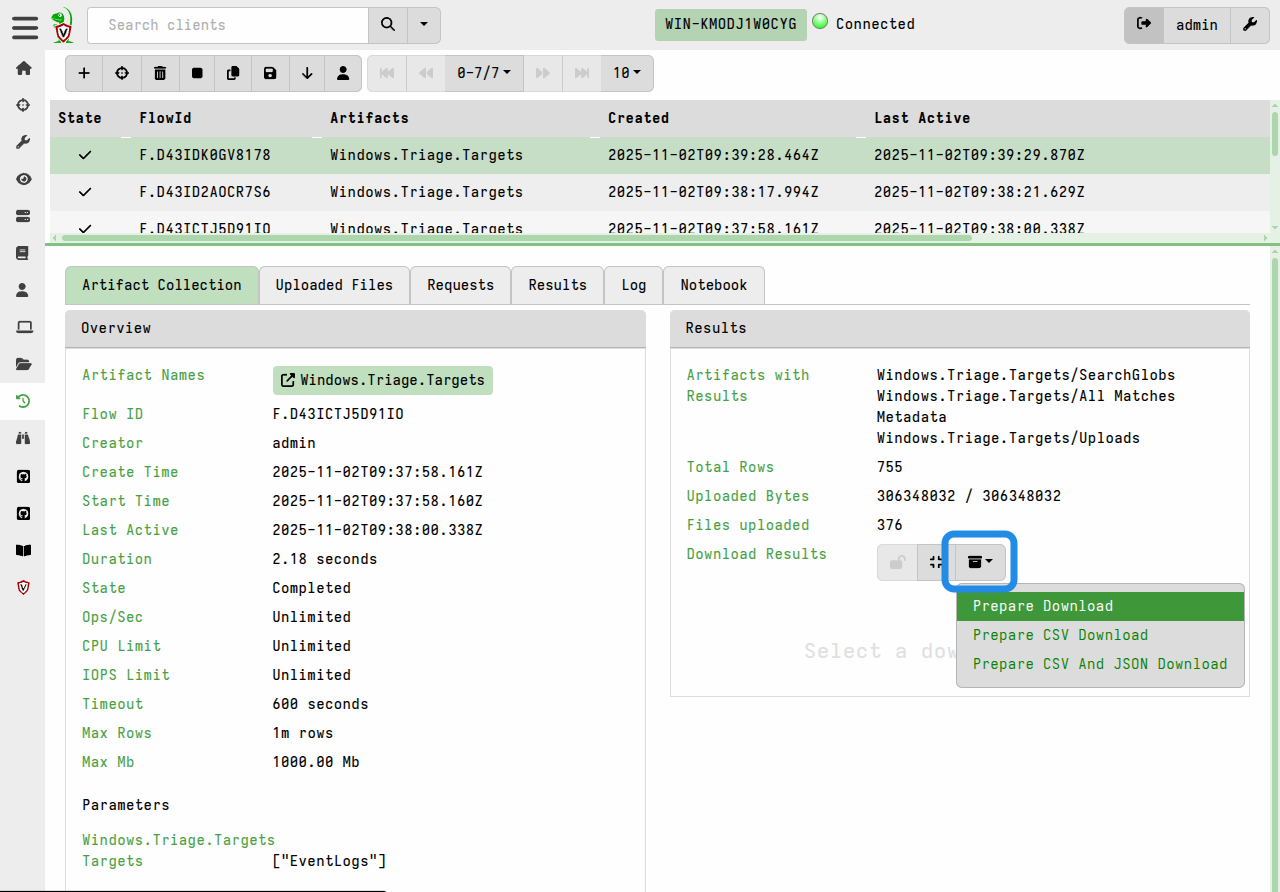
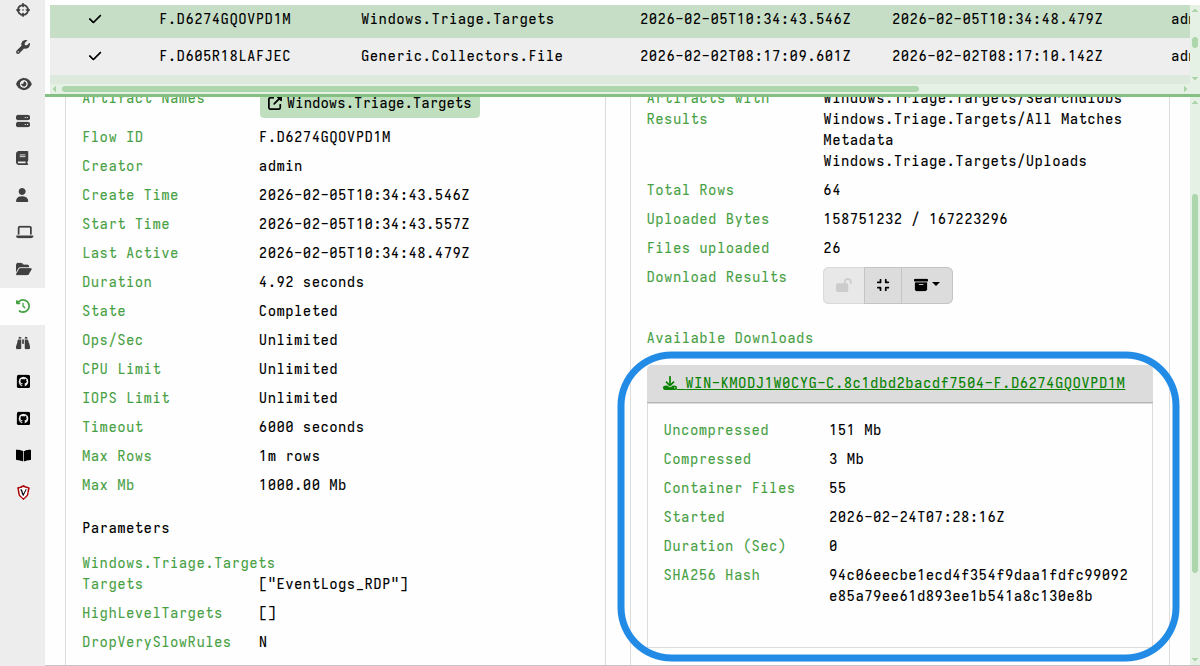
For hunts, the process is similar to that described above. The only difference is that the exported collection container will contain all the file uploads and JSON collection data from all collections linked to the hunt.
Keeping sparse files sparse
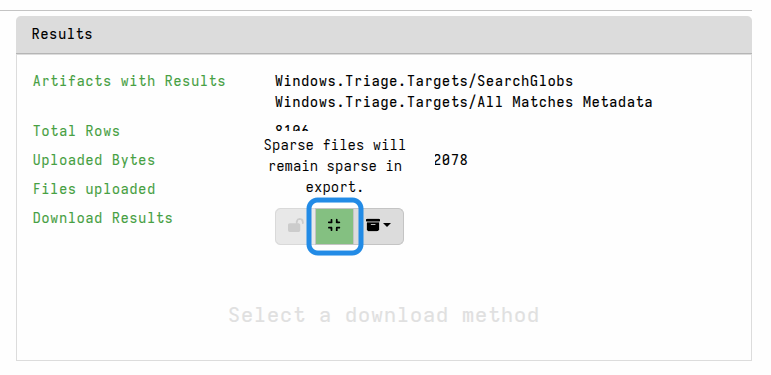
If you are exporting the files for a reason such as external analysis, and your analysis tools can deal with sparse files, then you may choose to keep the files in their sparse form. In that case you can toggle the option “Sparse files will remain sparse in export” before preparing the download.
By default, sparse files will be padded out when preparing the download package. This can cause certain files to grow significantly, although the zip compression should mostly offset this size increase.
Password-protecting exports
For additional safety during file-handling, and to prevent your local antivirus from accidentally quarantining potential malware, you can set a password in your user preferences. This ensures that any files exported from the GUI are automatically packaged in a password-protected zip and thereby made safe for transit to your analysis environment.
When a download password is set, all prepared downloads (i.e. bulk exports) and also any single-file downloads from the GUI will be have password protection applied to the zip. This GUI indicates this with a “lock” icon button in the Download Results toolbar.
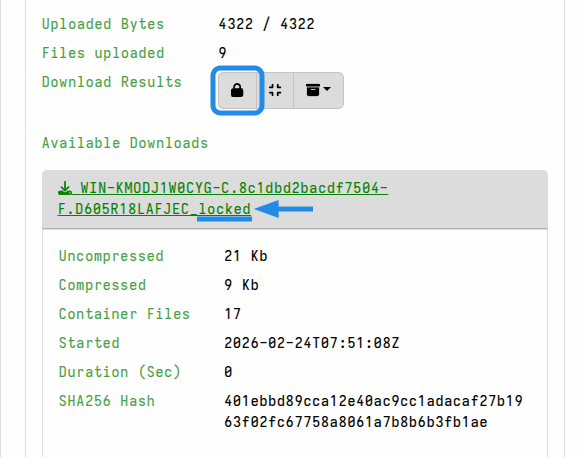
Password-protected exports have the _locked suffix added to the download file
name.
To unset the password protection behavior, clear the download password in your user preferences. However, for a particular download you can toggle the “lock” icon button to not apply password protection.
It takes time for the server to zip the results, and optionally pad out sparse files. If you are preparing exports for collections or hunts that are unusually large, then the default timeout (10 minutes) for this process may be insufficient.
In that case, you may need to set a greater timeout value, which you
can do by preparing the export via a server artifact, with an extended
timeout value. This approach is demonstrated by the
Server.Utils.ExportHunt artifact.
Alternatively, if you persistently need a higher timeout value, you can set it globally via the defaults.export_max_timeout_sec setting in the server config. However, as with all resource limits, the default values are intended to protect your server from unusual resource consumption, so you should try to avoid changing the global defaults unless you’ve considered the potential impacts.
There is also a default limit of 10 concurrent export preparation processes. If your server hardware is capable of more then you might need to increase this limit, which is done via the defaults.export_concurrency setting in the server config.
As with any server config change, this will require a restart of the server before the changes are in effect.
Preparing exports via VQL
You may not like always having to click the “Prepare Download” button for each collection or hunt. As with most things in the Velociraptor GUI, we provide VQL functions that perform the equivalent actions. In fact, most of the time your actions in the GUI are actually performed by VQL under the hood.
In VQL, we have two functions that kick off the creation of collection archives:
These functions can be used manually in notebooks, or you could create a server monitoring artifact that automates the zip creation whenever collections that contain a selected artifact complete.
For example:
name: Custom.CreateFlowDownload
type: SERVER_EVENT
sources:
  - query: |
      SELECT create_flow_download(client_id=ClientId, flow_id=FlowId, expand_sparse=true)
      FROM watch_monitoring(artifact="System.Flow.Completion")
      WHERE Flow.artifacts_with_results =~ "Windows.Triage.Targets"
Depending on the total size of the export it may take a while to prepare, but it will eventually appear under the collection’s Available Downloads without any manual GUI interaction.
Generating individual file download links
In some circumstances, you might not want to export all the files from a collection or a hunt for practical reasons. You might prefer to have a list of download links for all the individual files. This list can be given to an analyst who might decide to only download a subset of the files. The download of these files can then be done using a downloader script or other HTTP download tool.
You can create a list of download links for the file uploads associated with a collection in a Velociraptor notebook. Typically you would do this in the collection notebook, although it can be done in a hunt notebook of global notebook.
This method uses the uploads() plugin to enumerate all the file uploads in the
collection, and then the link_to() function to generate a valid download link
for each file. The link is constructed using the DNS name specified by
GUI.public_url in the
server config.
The following example will generate a list of download links in a collection notebook. You can add other columns to the query as needed.
SELECT link_to(raw=true,
               upload=dict(Components=Upload.Components,
                           StoredName=Upload.Components[-1])) AS FSLink
FROM uploads(client_id=ClientId, flow_id=FlowId)
The notebook results can then be exported in CSV format and given to other analysts (who perhaps aren’t familiar with Velociraptor).
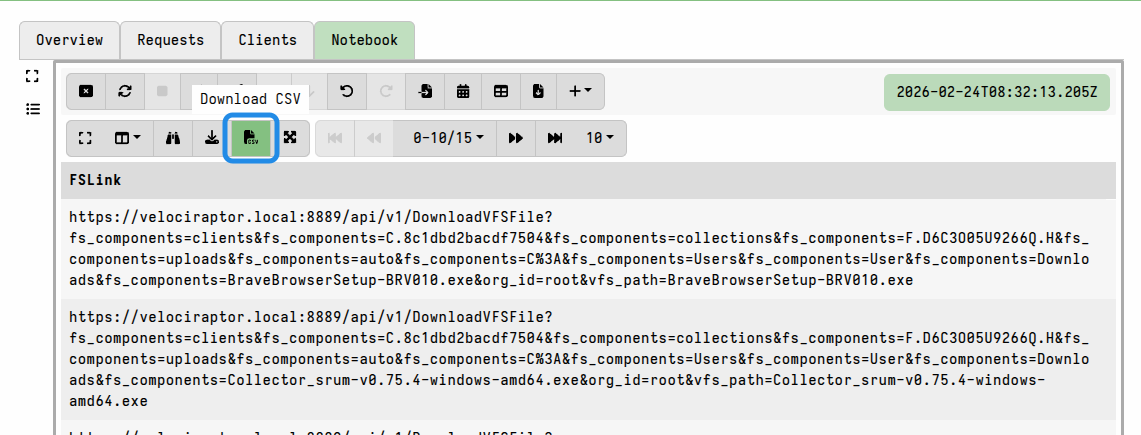
It will contain links to the individual files, and these can then be fetched if necessary using external HTTP clients (although user authentication will still be required to download the files).
For hunts, you can use the same technique after first enumerating all the flows associated with a hunt, and then enumerating the downloads in each flow, as demonstrated in this example.
If you automate the downloads, say via a script, then you will need to ensure that your script saves the file downloads separately for each client and possibly also each flow. You can add additional path components to the query and then have your external download tool use them to construct appropriate paths for the downloads.