File Acquisition
Traditional DFIR tools focus on file acquisition and often rely on file copies as their primary data source. These tools typically perform subsequent analysis on a centralized server or network-isolated system.
Unlike those tools, Velociraptor is designed to perform analysis directly on the endpoint. This decentralized approach scales far more easily than centralized processing, with live systems also providing a far richer source of forensic data.
However, Velociraptor is fully capable of performing file acquisition and has many features that allow you to do this quickly and efficiently. This section covers Velociraptor’s features that support file acquisition, and explains how to work with these files after you acquire them.
We refer to the process of running an artifact as “a collection”, regardless of whether the process copies files from the target system. While VQL queries can copy files, this is only one of many available actions.
Velociraptor queries are written in VQL (Velociraptor Query Language) and packaged inside a YAML data structure which we call an artifact. You then collect these artifacts on one or more target endpoints.
VQL artifacts can combine data from multiple sources to create a more complete picture of an event than traditional “offline” file analysis can provide. For example, on a live endpoint, Velociraptor can:
- Combine file and API data: VQL queries can extract information from static
files, system APIs, and volatile (memory) sources simultaneously. An example
of this is parsing Windows event logs. While traditional tools might just look
at the
.evtxfile, VQL can simultaneously query the Registry API to find specific DLLs that translate raw event codes into human-readable messages. - Access live context, such as active system state data that is unavailable when examining an isolated file or a disk image.
While other DFIR tools often use “collection” to imply file acquisition, Velociraptor collections usually return only parsed data.
In Velociraptor we perform file acquisition (to use the more accurate term) primarily for the purpose of preserving evidence. Centralized file processing can be done, but it is significantly more complicated and less efficient than just querying the data sources directly on the endpoint.
You might also notice that we sometimes use the term “flow” as an alternative to the term “collection”. This is for historical reasons, but it might also be helpful to think in terms of this neutral term since it isn’t colloquially associated with the process of copying files.
Why collect files?
File acquisition, is typically performed for two distinct reasons:
- To preserve forensic evidence.
- To allow for additional analysis on a separate system (not the original computer) using external tools.
Traditional forensic tools and workflows often blur the distinction between these two goals, especially when such systems centralize the parsing and extraction of data. This conflation is compounded by traditional methodologies that emphasize evidence preservation and working exclusively on file copies (often captured in the form of disk images), as investigations of yesteryear often had litigation as their primary goal.
While these considerations certainly still apply to some investigations, the majority of modern IR investigations do not have litigation as an end goal. Modern investigations frequently require scaling to an extent that makes bulk file collection and centralized processing highly impractical and painfully slow. The centralized file processing approach is at odds with the goal of rapid incident response. For that reason, Velociraptor is not designed around the centralized processing paradigm, although you can still use Velociraptor to work with file copies and disk images in a centralized manner if necessary. And that might be necessary under certain circumstances, but you should take advantage of Velociraptor’s scalable, decentralized design whenever possible.
That is, the recommended approach with Velociraptor is:
- Query data sources on the live endpoint when possible.
- Avoid copying files unless you have a specific reason to do so, such as for evidence preservation or for analysis by external tools.
- If you must preserve file-based evidence, then copy the files in addition to querying the files and non-file data sources on the live endpoint.
For example, if you are looking for specific events in the Windows event log,
run queries against the live system to find those events, and then copy the
.evtx file only if the events are found.
If you wish to perform wholesale preservation of file-based evidence, say for legal reasons, then disk images are still considered the gold standard for that purpose. You might still consider creating disk images in addition to investigating the endpoint with Velociraptor. Velociraptor does also provide artifacts that facilitate bulk file collection if you need to do selective file preservation.
With all that considered, let’s look at how files are actually collected…
File Uploads
In Velociraptor, a “file upload” is the transfer of a file from an endpoint to
the server, which then stores the file in its filestore. The VQL upload()
function is the workhorse behind this capability and is used in many of the
built-in artifacts.
Velociraptor enables efficient file transfer and storage through several built-in mechanisms:
- File Upload Deduplication: If different artifacts request the same file within the same collection, it is only transferred and stored once.
- Sparse File Handling: For large but mostly empty files (like the Windows
USN journal), Velociraptor only transfers regions containing actual data. Such
files are called “sparse files”. Velociraptor creates a corresponding
.idxfile mapping out the sections that contain data, and it then uses this to reconstruct the original layout on the server, if required. This can significantly reduce the size of the collection for certain files that tend to be very large. When exporting files from the GUI, you can choose whether to pad out sparse files or keep them in their compact form. - Compressed Storage: Since version 0.75, the server stores data in a compressed form by default. This can greatly improve storage efficiency (by up to 80–90% compared to previous versions) since many of the files we work with are highly compressible.
Beyond uploading files to the server, specialized plugins like upload_s3(),
upload_gcs(), upload_azure(), and upload_sftp() allow endpoints to send
data
directly to external cloud storage providers or remote servers.
New users might find the “upload” and “download” terminology a bit confusing.
- In the context of Velociraptor we generally use the term upload to refer to a file transfer from the client to the server (or other destination).
- In general we use the term download to refer to the act of transferring files from the server to your local workstation, usually via the Velociraptor GUI.
Note that in the Velociraptor GUI, particularly in the VFS browser, uploading from the client is sometimes described using the term “download” because the VFS browser presents actions from the server’s perspective (the server is “downloading” from the client). Technically, the client always initiates the upload to the server: By design, the Velociraptor server never accesses the client directly!
To summarize the terminology conventions used in our documentation:
- Collect: Artifact execution and data transfer, which might include file uploads.
- Upload: Client → Server or another remote storage destination (File transfer)
- Download/Export: Server → User Workstation (File transfer)
The VQL upload function
The VQL upload() function is the primary mechanism for transferring files from an endpoint to the server filestore. It can be triggered based on specific query criteria, and all resulting files are associated with the collection that invoked the function.
When this function is used, the uploaded files are stored on the server and
associated with the collection that invoked the upload() function.
Alternatively, if you want to upload to destinations other than the server, Velociraptor has a range of other upload-related functions that are described below.
A Basic Example
To target specific files, use upload() in conjunction with the glob()
plugin. The following query identifies and uploads all executable files from
every user’s Downloads folder on a Windows endpoint:
SELECT OSPath, upload(file=OSPath) AS Upload
FROM glob(globs="C:/Users/*/Downloads/*.exe")
Of course if you know the exact path of a file that you want to upload to the
server then you don’t need to use the glob() plugin, but this plugin is
usually used when searching the filesystem.
The upload() function requires an OSPath in its file argument, so any
plugin that produces an OSPath will work, or you could manually specify a path
to target a particular file.
Accessing file uploads on the server
In the collection’s Uploaded Files tab, each file upload is automatically displayed with both a download link and a link to view the file using the built-in file inspector (the “preview” option).
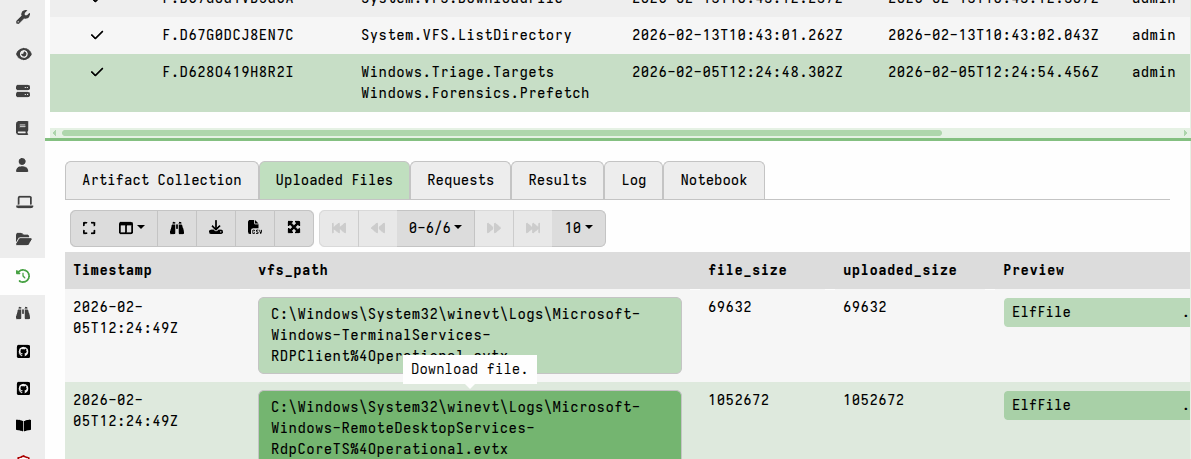
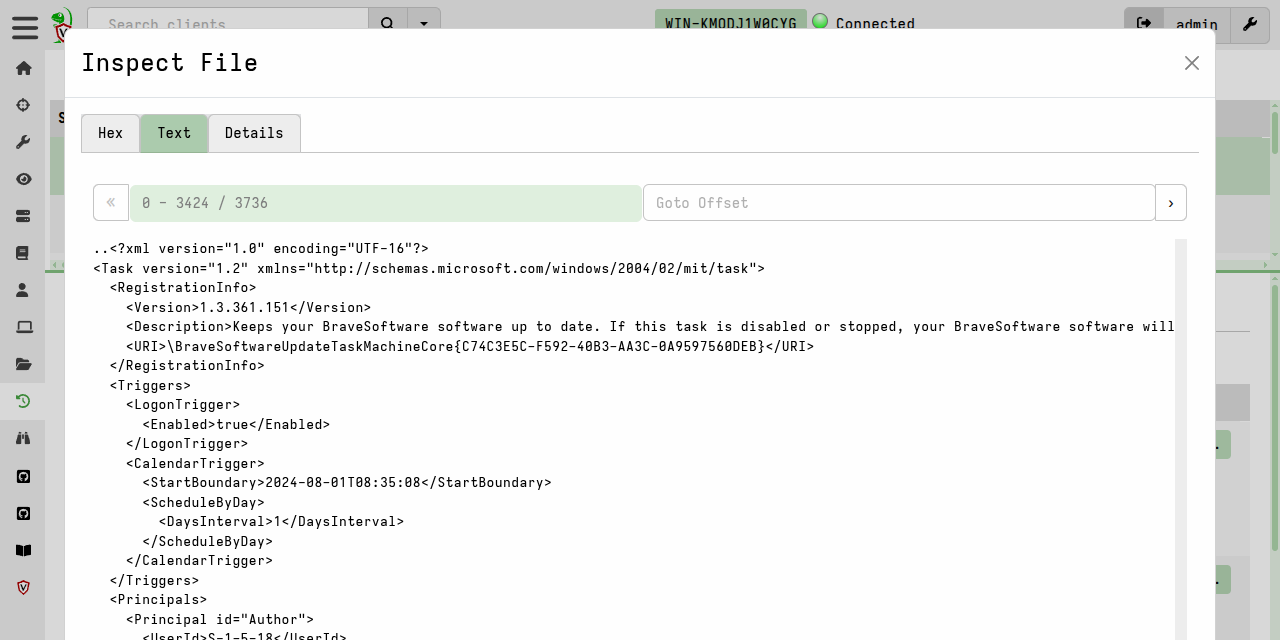
In other VQL results tables, you can configure which column types are used to facilitate GUI access to the uploaded files.
For example, if we use the upload() function in an artifact and assign it to
the columns named FilePreview and FileDownload:
SELECT OSPath,
        upload(file=OSPath) AS FileDownload,
        upload(file=OSPath) AS FilePreview
FROM glob(globs="C:/Users/*/Downloads/*.exe")
then we can also define how we want them displayed in the results table in the GUI using the column_types section in the artifact:
column_types:
  - name: FilePreview
    type: preview_upload
  - name: FileDownload
    type: download
The column types, if specified in the artifact definition, will be applied to the named columns when the results are viewed in a notebook. However, you can also manually edit the column types in the GUI when viewing any results table:
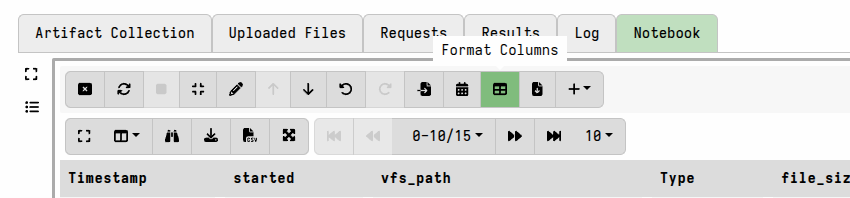
When you edit column types in a notebook, the GUI creates a dict containing the
specification and assigns it to the ColumnTypes VQL variable, for example the
YAML column_types specification shown above can alternatively be included in
your VQL as:
LET ColumnTypes <= dict(`FilePreview`='preview_upload', `FileDownload`='download')
The VQL specification approach is more commonly used in Velociraptor
notebooks, although these are based on
notebook templates,
which are also just artifacts, and therefore also support the
YAML-based column_types specification.
Enumerating uploads using VQL
The uploads associated with a collection can be enumerated in Velociraptor notebooks using the VQL uploads() plugin.
This plugin returns information about all the uploads in a collection, including 2 fields that can be used to access the file in the server’s filestore:
vfs_path: a PathSpec objectUpload: an UploadResponse object
These fields can be used in subsequent VQL actions to access or manipulate the
file copy that is stored in the server’s filestore. For example, the vfs_path
can be used with the
file_store_delete()
function, if necessary.
For an individual collection
It’s easy to enumerate the file uploads associated with any collection in a notebook.
Example
LET ColumnTypes <= dict(`Upload`='download')

SELECT *
FROM uploads(client_id=ClientId, flow_id=FlowId)
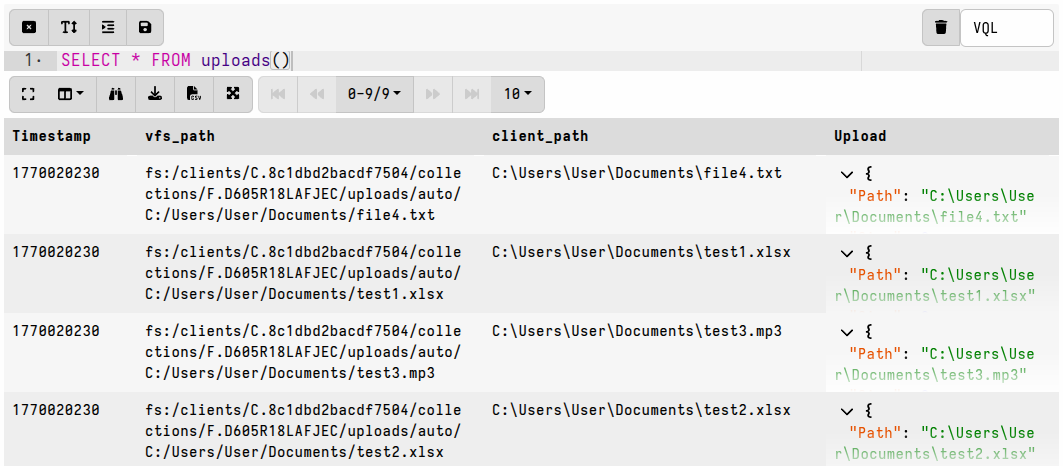
Note that in a collection notebook the ClientId and FlowId values don’t need
to be explicitly specified, since they are already present in the notebook’s VQL
scope.
For a hunt
File uploads associated with a hunt can be similarly enumerated in a notebook by iterating over the flows linked to the hunt.
Example
LET ColumnTypes <= dict(`Upload`='download')
LET HuntId <= "H.ABCXYZ"

SELECT *
FROM foreach(
  row={
    SELECT ClientId,
           FlowId
    FROM hunt_flows(hunt_id=HuntId)
  },
  query={
    SELECT *
    FROM uploads(client_id=ClientId, flow_id=FlowId)
  })
In a hunt notebook the HuntId does not need to be explicitly set as it is
already present in the notebook’s VQL scope.
Also note that if the artifacts being hunted include file uploads with the
appropriate column_types set, then the notebook will display links to the
uploaded files when you run a simple
SELECT * FROM source(artifact="ArtifactName")
query, which is the default query for a new hunt notebook.
Upload-related Features
Velociraptor has several features that work together with the upload()
function to extend what it can access, make it safer to use, and to improve
upload efficiency in certain scenarios.
Filesystem Accessors
Accessors act as filesystem drivers,
allowing the upload() function to read from diverse sources such as:
- the standard OS API (
fileaccessor), - raw cluster level (
ntfs,fat,ext4accessors), - Windows registry (
registryaccessor), - memory (
winpmemaccessor), - compressed archives (
zip,gzip,bzip2accessors)
and many other specialized formats.
This means that you can upload files directly from sources that would normally be restricted or require an intermediate processing step. For example:
- locked “in use” files can be accessed using the
ntfsaccessor, bypassing OS file locks. - if a file is inside a supported container-type file format (let’s say a
.pstarchive or a.zipfile or the Window registry) you can upload the file directly from the archive without needing to first extract the archive. There is no need to extract archives or make temporary copies of files before uploading them.
As an interesting application of accessors, and demonstrating the usefulness of
their modular nature, the ssh accessor can be used to
upload files from a remote host via SSH,
that is: without needing a Velociraptor client on the remote host.
Any data that has been generated by another function or plugin can be uploaded
as a file if you use the upload() function with the data accessor.
Password-protected file downloads
For additional safety when locally handling files, and to reduce the chance of your local antivirus accidentally quarantining potential malware that you intend to analyze, you can set a downloads password (such as the industry-standard “infected”) in your user preferences. This ensures that any files exported from the GUI are placed in a password-protected zip and thereby made safe for transit to your analysis environment.
When a download password is set, all prepared downloads (i.e. bulk exports) and single-file downloads from the GUI will be zipped and password-protected. To unset this behavior, clear the download password in your user preferences.
Mitigating Network and Server Impacts
The collection of potentially many files simultaneously from many clients can result in a significant resource impact on the server, as well as possibly impacting normal network operations.
In addition, the collected files are stored on the server’s filesystem within the Velociraptor datastore, so you need to ensure that your server has sufficient disk space to suit your collection goals.
You should always consider the potential impacts when planning collections that involve bulk file uploads, or uploads of very large files. Fortunately, Velociraptor has several mechanisms that help mitigate the potential impacts associated with file collections at scale.
Resumable Uploads
The Resumable Uploads feature allows large files to be transferred to the server in the background (asynchronously), and continue transferring where they left off after a network or client interruption. Whether the client crashes, the system reboots, the network goes down, or the collection simply times out, the transfer progress that has already been made is preserved on the server.
Resumable Uploads is considered an advanced and still slightly experimental feature and is therefore “opt-in” via a boolean VQL variable. It’s not enabled by default.
In addition, enabling this feature comes with some caveats and changes to upload behavior that might be confusing to the user (see the upload function documentation for more details).
As with any advanced feature, Resumable Uploads have seen continuous refinement. While it was a major highlight of the 0.72 release, some stability issues were noted in subsequent versions, leading to the feature being disabled in certain releases to ensure that server performance wasn’t impacted during high-load scenarios. You should use the latest stable release for the most reliable experience, especially if you intend to use this feature.
Resumable uploads are enabled by setting the VQL variable UPLOAD_IS_RESUMABLE
in a query. Note that this means that the feature is enabled per query - it is
not a feature that can (currently) be enabled or disabled globally for all
collections. It can also be enabled per artifact by setting the variable as an
artifact parameter, which the Generic.Collectors.File, FileFinder artifacts,
and Triage artifacts have by default.
When this feature is enabled for a query, Velociraptor uses upload transactions:
- Instead of the VQL query waiting for the entire file to reach the server, the
upload()function returns an Upload ID immediately. - The VQL query then continues its execution while the actual data transfer happens asynchronously in the background.
- If the client is interrupted, the transaction state is stored, allowing the server to ask the client to resume the specific data stream upon reconnection.
While resumable uploads can be incredibly useful in challenging network environments, they aren’t really necessary for most file collections which typically consist of relatively few files that are mostly moderate in size.
Resumable uploads are most useful for large file transfers, such as:
- Full memory images (WinPmem/AVML).
- Bulk file collections like
Windows.Triage.Targets(depending on what you choose to collect). - Large logs or database files that exceed several gigabytes.
Resumable transfers may also be helpful in unstable network environments, such as when attempting file collections over an unstable internet link.
Checking the status of resumable uploads
On the server, you can check which file uploads are outstanding for a specific collection using the upload_transactions() plugin.
For example, in the following screenshot you can see that the client is
disconnected, and that several files are pending upload. In particular, the
first file will be resumed from its start offset while the files listed below
it will be sent from offset 0.
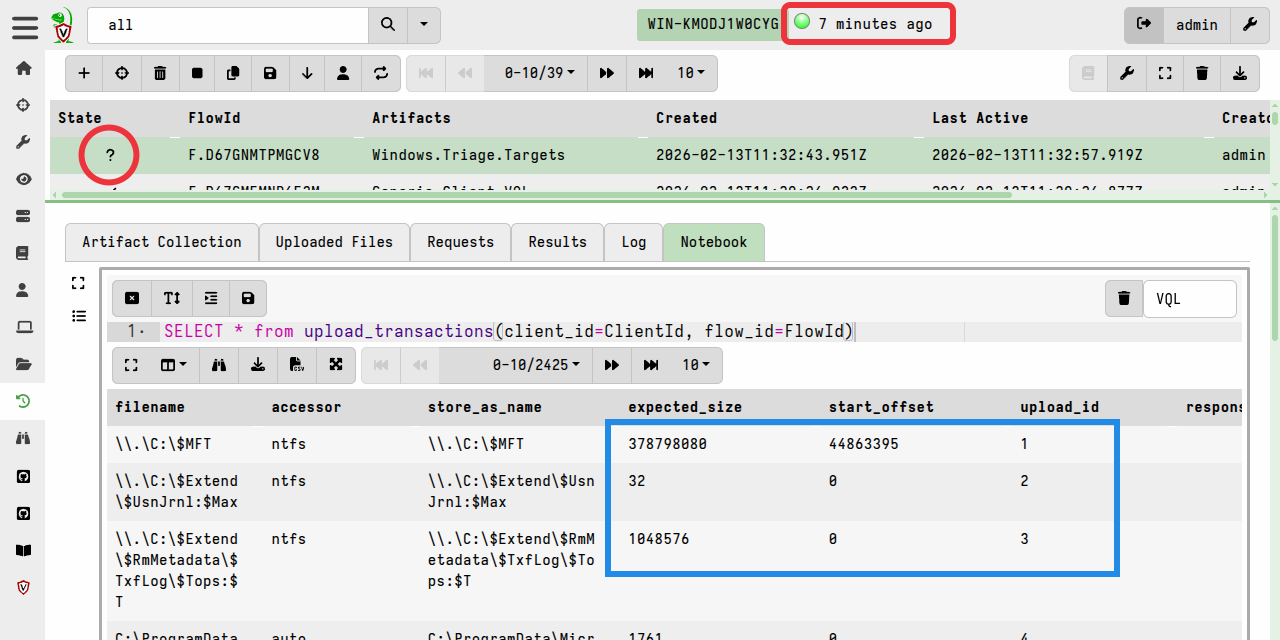
upload_transactions() can be run from any notebook on the server, but for
convenience we are running it here in the collection notebook so that it
automatically has access to ClientId and FlowId from the notebook’s VQL
environment.
Note that uploads will be resumed from the offset recorded by the server. If the file changes during a client interruption then the upload will be resumed from that offset on the changed file. For this reason it is not advisable to use resumable uploads for files that are expected to change frequently.
Network Rate Limits
Velociraptor allows you to define a global_upload_rate and a
per_client_upload_rate within the Frontend.resources configuration section,
both measured in bytes per second.
global_upload_rate: This setting caps the total bandwidth that the server allows for all incoming client uploads.per_client_upload_rate: Restricts the bandwidth utilised by each individual client. This is a global value that applies to every client connected to that frontend.
These settings, if configured appropriately, can ensure that the client-server data transfers do not saturate network links during large-scale collections.
Collection Resource Limits
It is often hard to determine in advance how much data will be collected or how long it will take. It might happen that a certain endpoint has many more files than you anticipated, or that a certain file might be unusually large on some particular endpoint.
Resource limits is a feature
intended to protect against such unforeseen circumstances. Velociraptor allows
limits to be set, after which the collection is cancelled. In particular, the
max_upload_bytes and timeout resource limits provide an additional safeguard
against unexpected/accidental uploads of extremely large files.
To guard against accidental server disk exhaustion, there is a default limit of 1GB per collection. This limit, and the default 10-minute timeout, can be increased in the GUI for larger acquisitions. Alternatively they can be defined in the artifact if the artifact is expected to usually result in large data transfers (such as and artifact which uploads memory dumps).
Keep in mind that if the specified limits are exceeded then the collection will be considered “failed”, although it can easily be re-collected with new increased limits being applied if you decide that the large transfer is acceptable.
To do that:
- navigate to the client’s collections list screen
- copy the failed collection
- increase the resource limits before launching it.
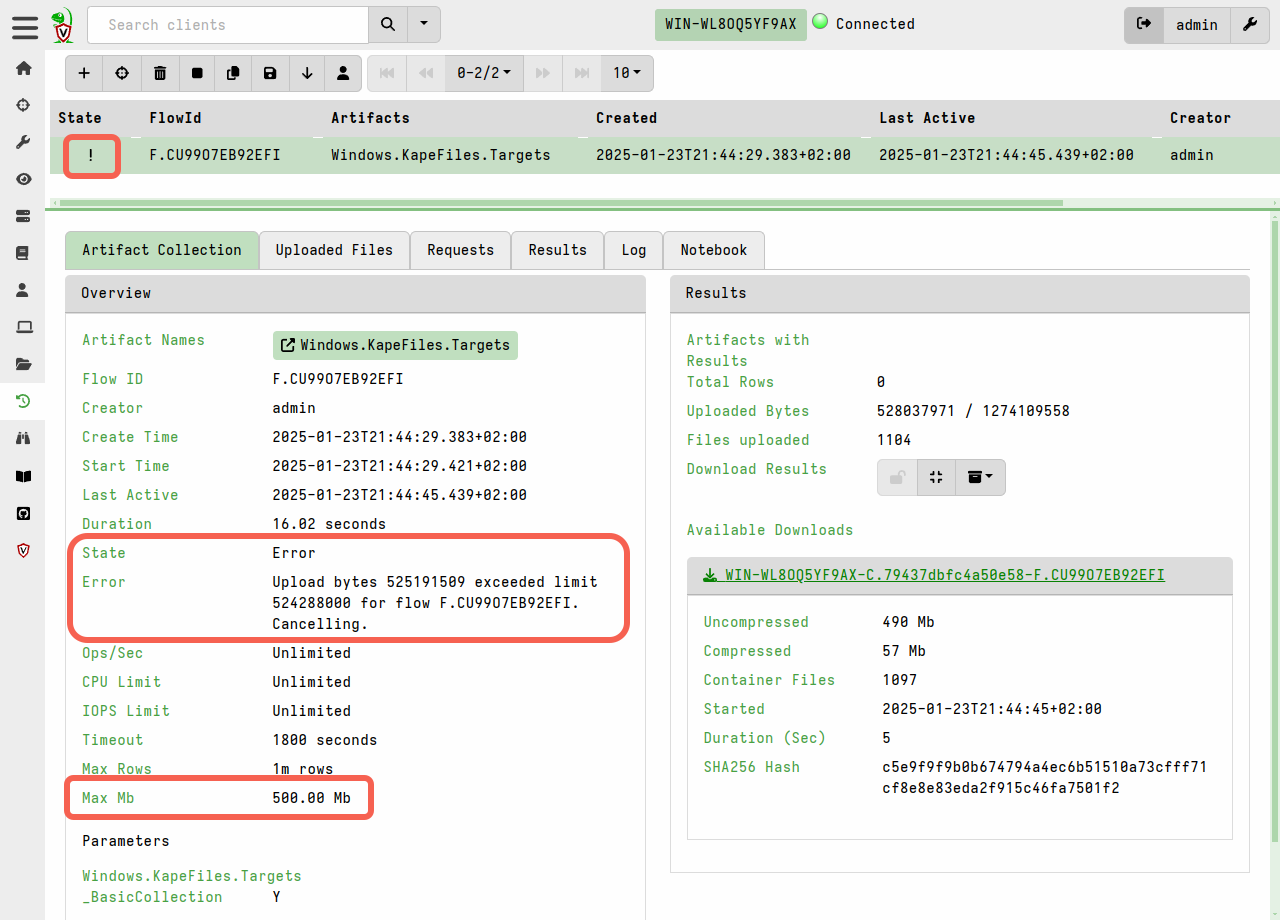
If a collection is running longer than you expected, you can interactively cancel it (or hunt, consisting of many collections) by clicking the “Stop” button. When stopping a hunt, all participating clients will be told to cancel their individual collections.
Datastore File Compression
In older versions compression was only applied during network transport. Since version 0.75, the server stores uploaded files in a compressed form by default to improve storage utilization. The compression is performed by the client, and therefore has minimal performance cost to the server. On the server the decompression is handled transparently, such as when exporting files from the GUI or accessing them via VQL.
This feature significantly mitigates the risk of bulk file uploads unexpectedly depleting the disk space on the server.
Datastore Disk Usage Protection
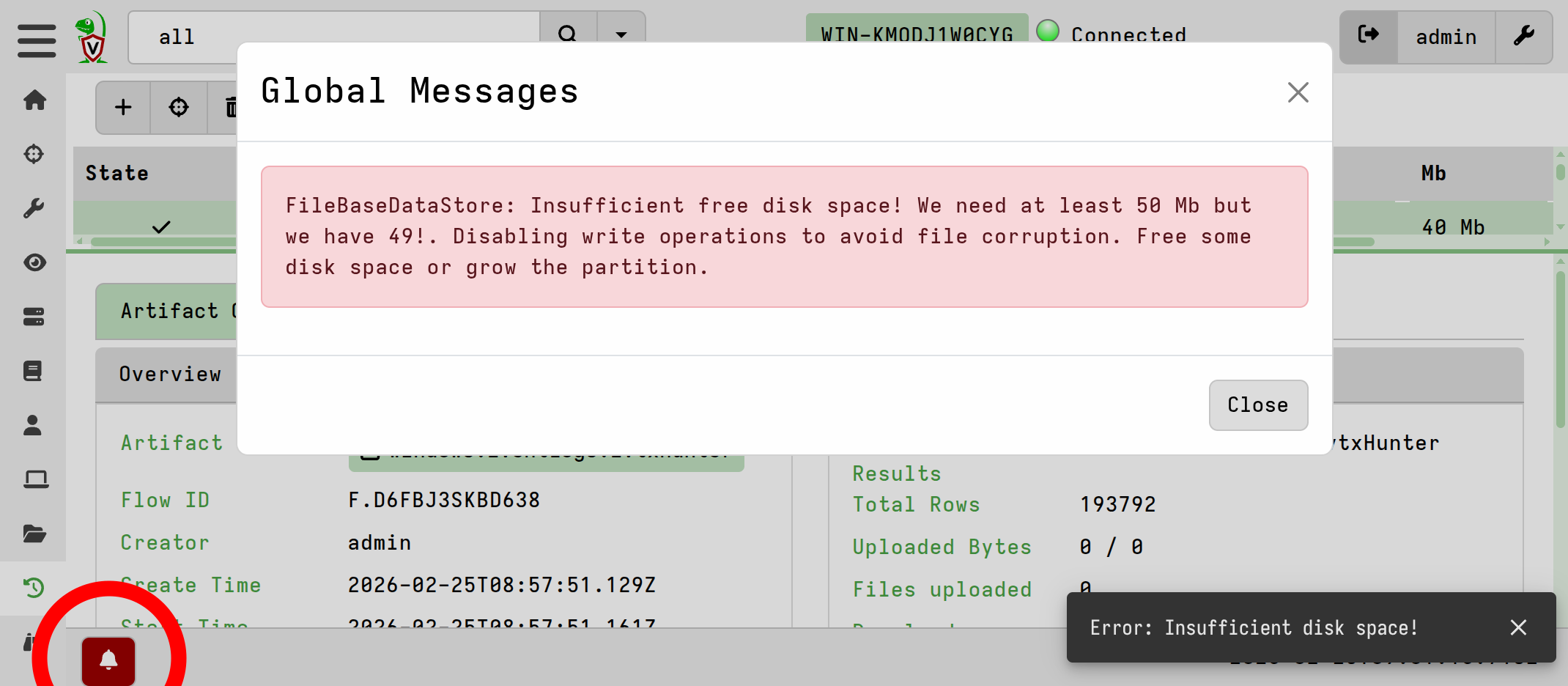
The server includes a disk usage checker that automatically disables writes when
free space hits a minimum threshold (50 MB by default). Under these conditions,
the server returns a 503 error to clients, causing them to buffer data locally
rather than risk file corruption or data loss on the server. This mechanism
protects critical metadata, such as hunt objects and organization settings,
which were vulnerable to corruption in older releases.
The GUI will also display an alert if the minimum threshold is encountered.
Remote Upload Destinations
It’s also possible to have the client upload files to destinations other than the Velociraptor server. This is most often used with offline collections to upload a large collection container zip to a remote destination, but the same upload functions can be used in any VQL queries to upload individual files.
Using remote upload destinations rather than your Velociraptor server is one way to avoid the potential impacts of bulk/large file uploads on the server. You can, for example, upload files to cloud storage services which have practically unlimited storage capacity.
Of course the downside to that approach is that your collected files will then be separate from your non-file collection data. But in some cases that may be the preferred option, for example:
- where the files need to be fed into further automated processing pipelines
- where the remote destination serves as a long-term storage vault for evidence preservation, independent of Velociraptor.
To avoid impacting a network’s internet link you could also consider setting up a MinIO/SMB/WebDAV/SFTP server on the local network and then using the corresponding VQL function to send the collected files to that destination. However, since version 0.75 the files sent to the server’s datastore are compressed by default, as mentioned above, while files sent to other destinations will not benefit from this automatic compression.
Velociraptor currently supports the following remote upload destinations:
-
Google Cloud Storage: using the
upload_gcsfunction. -
AWS S3 or MinIO: using the
upload_s3function.MinIO is a self-hosted S3-compatible server.
See How to set up a MinIO (S3-compatible) dropbox server for file uploads.
-
Azure Blob Storage: using the
upload_azurefunction. -
SMB Share: using the
upload_smbfunction. -
SFTP server: using the
upload_sftpfunction. -
WebDAV server: using the
upload_webdavfunction.See the upload_webdav function documentation.
-
Generic HTTP server: using the
http_clientfunction.The generic
http_clientVQL function can also be used to transfer files to a generic web service destination, a common use case being to submit files to malware analysis sandboxes. See the function’s documentation for examples.
Note that unlike the upload() function, these plugins do not support resumable
uploads, or any features that rely on server-side functionality. Uploads to the
remote destinations are not tracked by the server, although the function’s
results will be included in the data and logs that are returned, as with any
other collection.
Each remote destination type offers its own particular options and you should refer to the function-specific documentation in the VQL reference, and the vendor documentation for the supported cloud storage providers.